Subscribe:
    Subscribe Twitter Facebook

    Friday, January 28, 2011

    How to Jailbreak Your iPad Using Greenpois0n (Windows)

    Follow the Steps mentioned below:-


    Step One
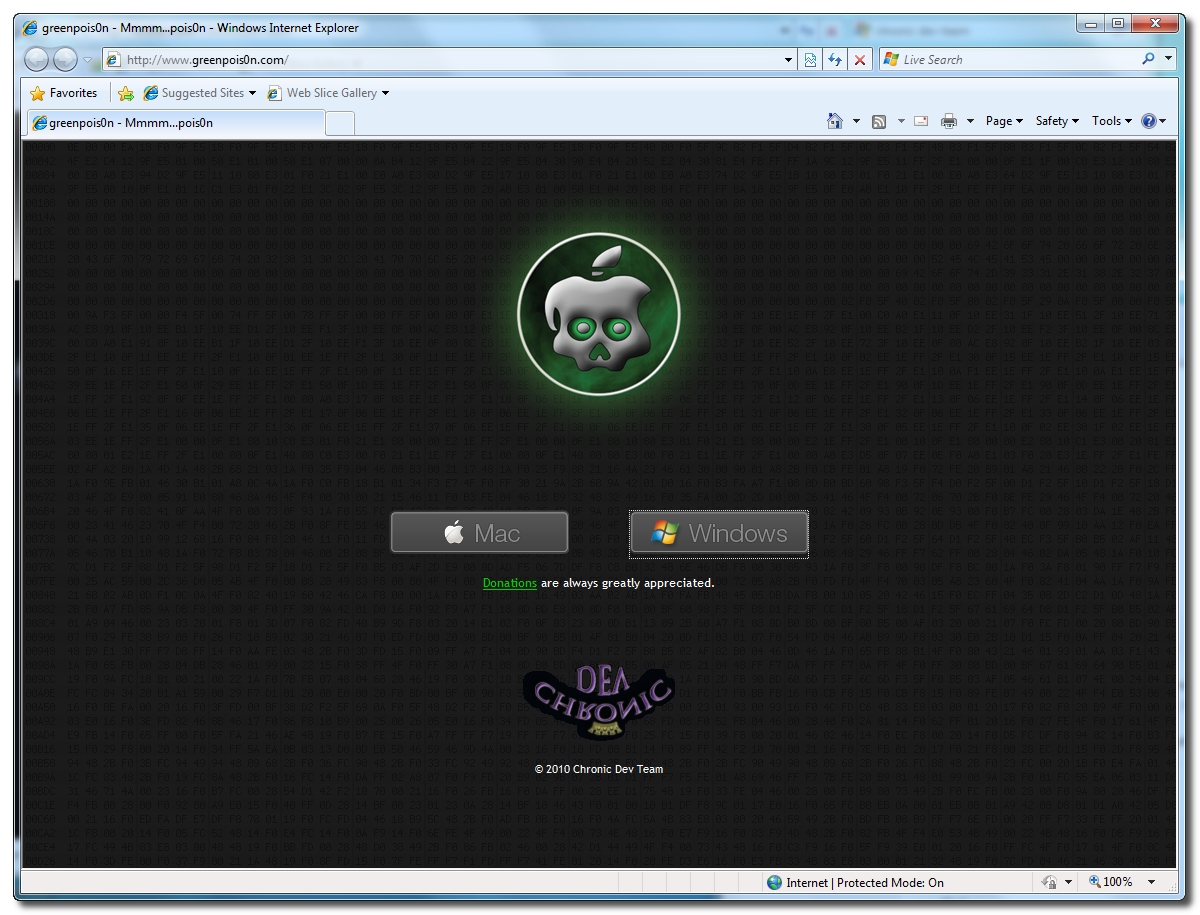
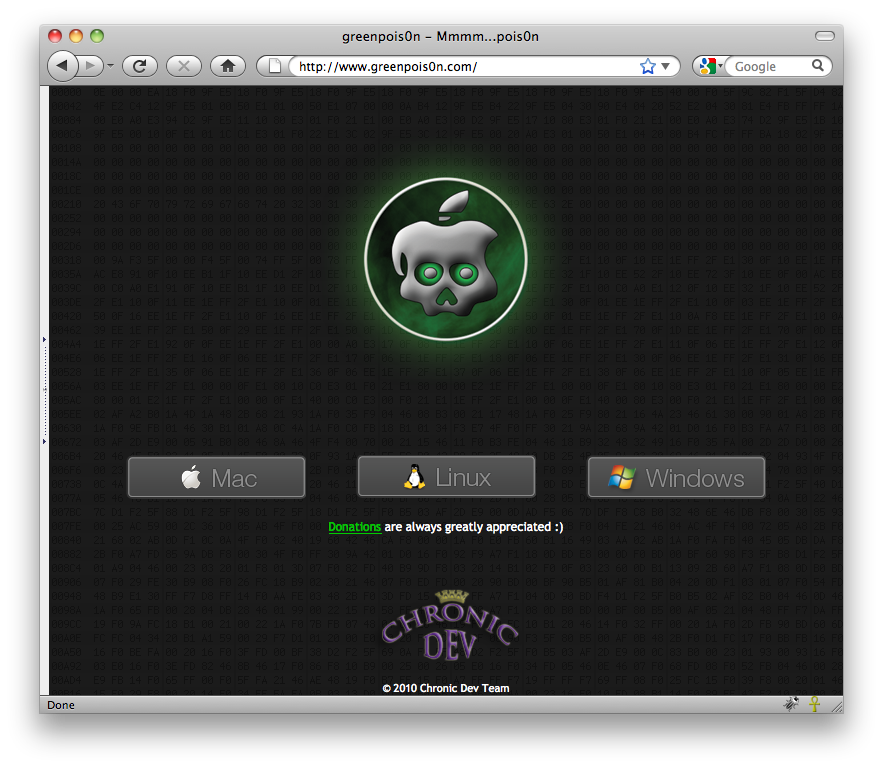
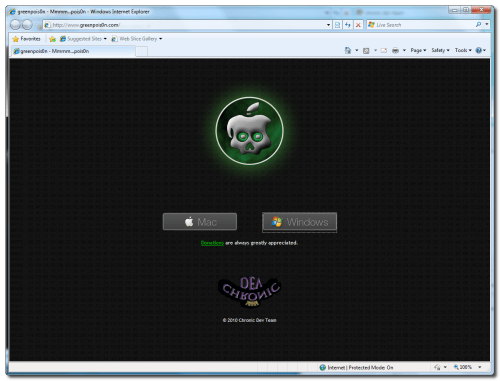
    Open your web browser of choice and navigate to http://www.greenpois0n.com. Click the Windows link at the bottom of the screen.

    Step Two
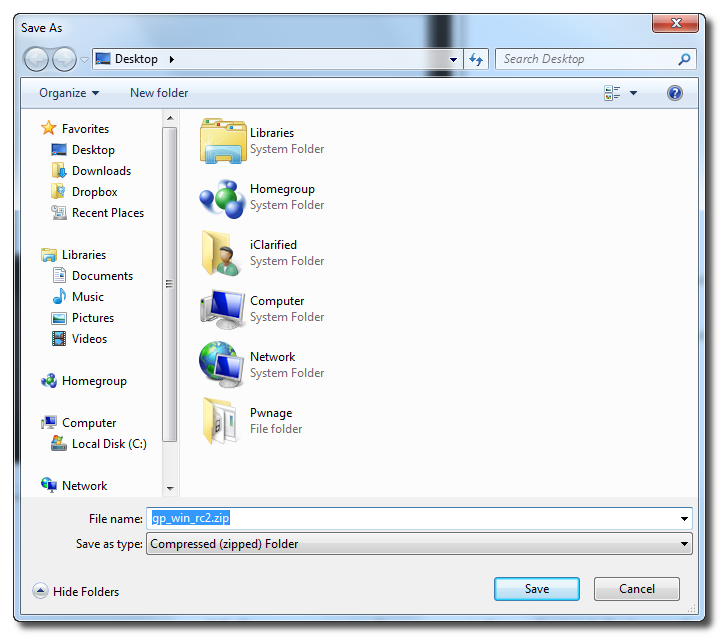
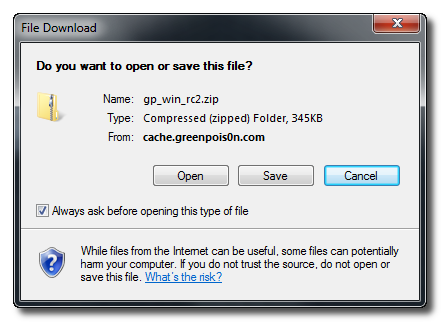
    When prompted save the download to your desktop


    Step Three
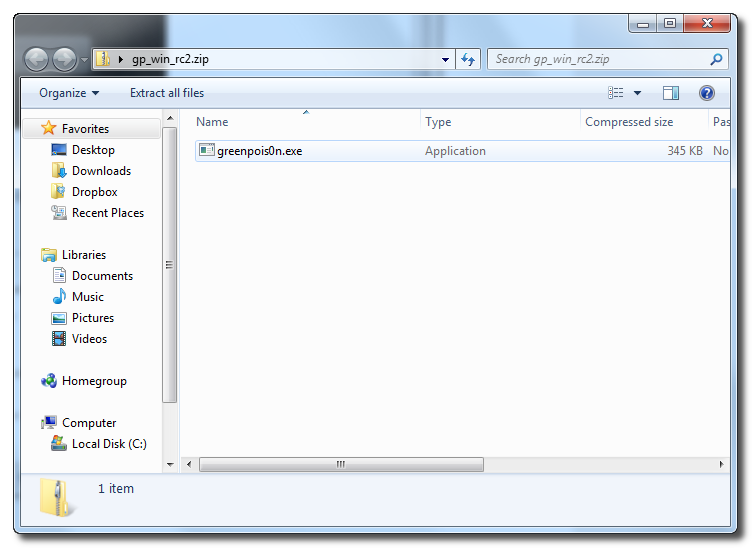
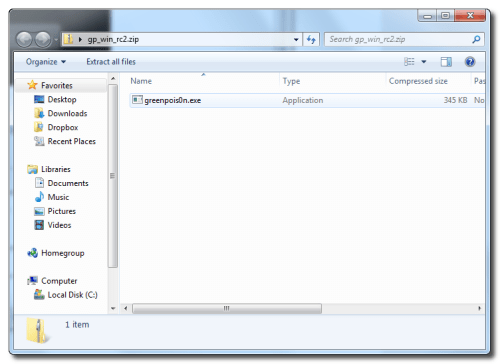
    Double click the downloaded gp_win_rc2.zip file then drag the greenpois0n.exe file to the desktop. Doublegreenpois0n.exe from the desktop to launch the application


    Step Four
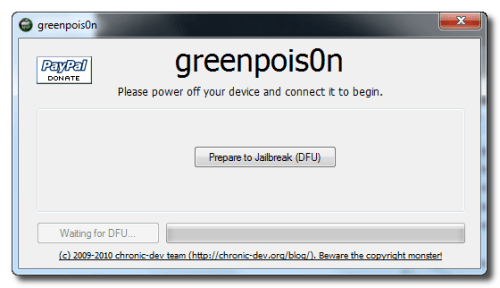
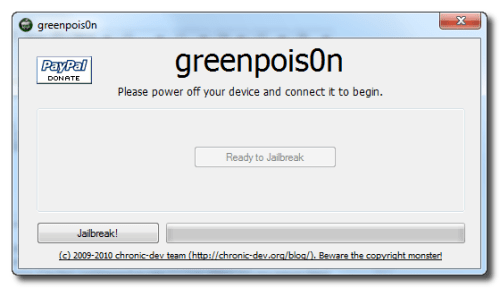
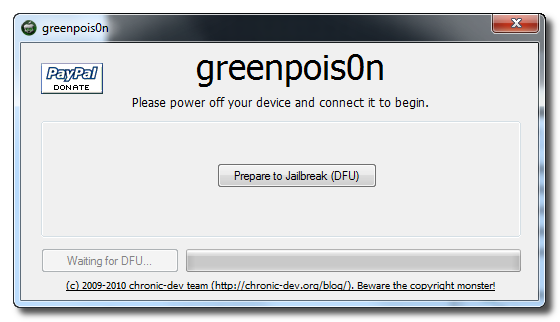
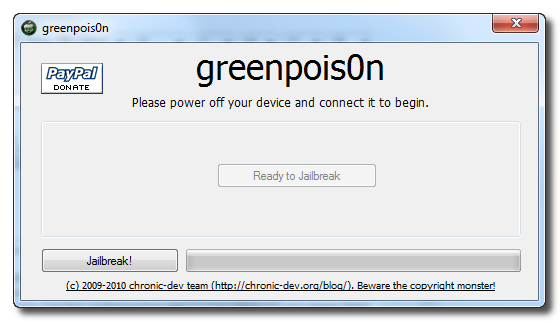
    Power off your iPad then click the large Prepare to Jailbreak (DFU) button


    Step Five
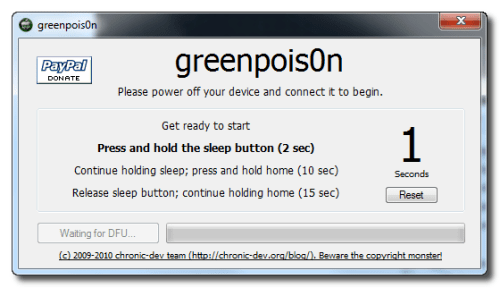
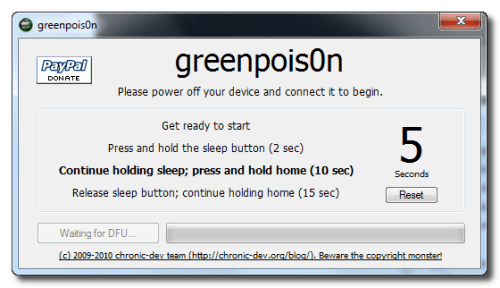
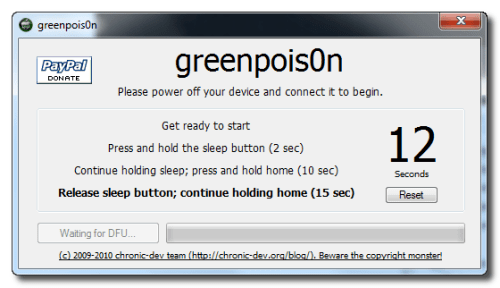
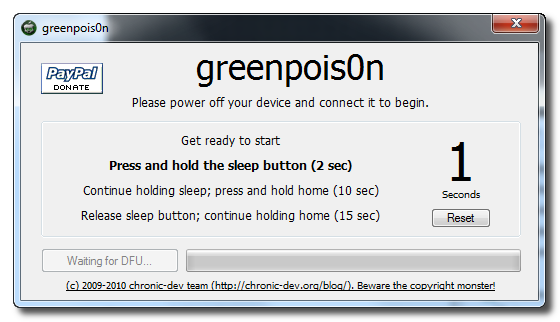
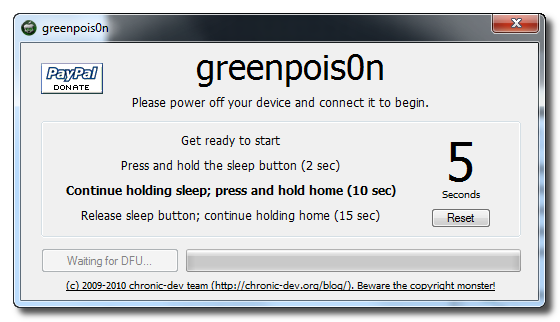
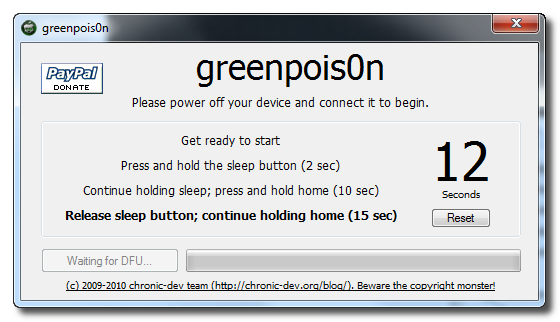
    You will now be instructed on how to place your iPad into DFU mode.

    You will be asked to press and hold the sleep button for 2 seconds.


    Continue holding sleep; press and hold home for 10 seconds.


    Release sleep button; continue holding home for 15 seconds.


    Step Six
    Once your iPad is successfully in DFU mode you may click the Jailbreak button.


    Step Seven
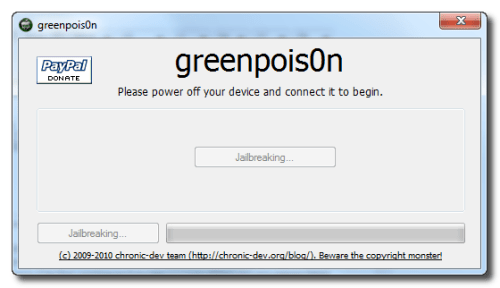
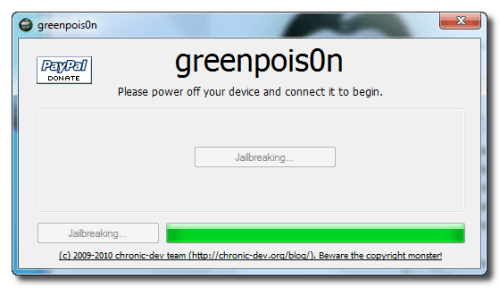
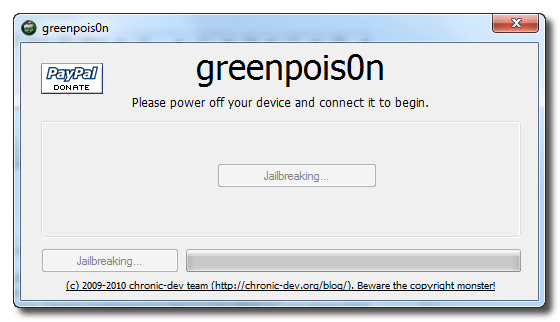
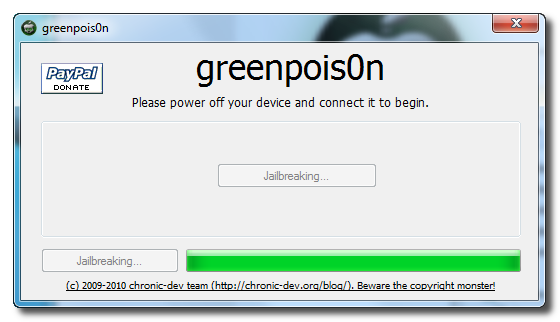
    Greenpois0n will now jailbreak your device.


    Step Eight
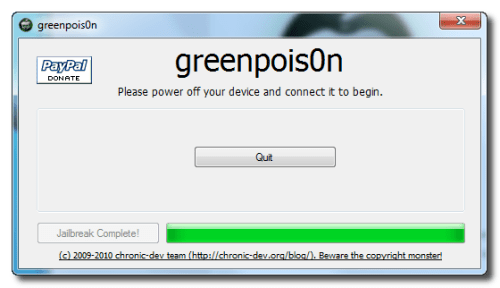
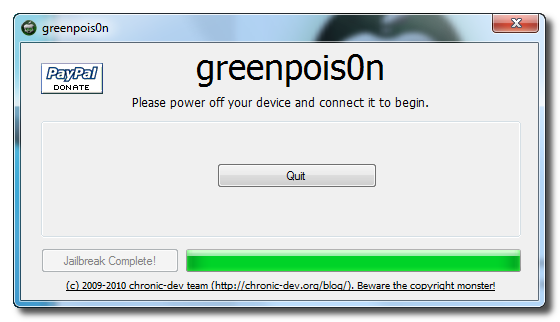
    Click the Quit button once the software application has completed.


    You'll notice some verbose mode text scrolling on your device.

    Step Nine
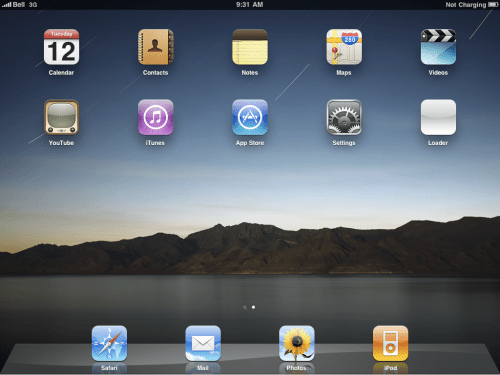
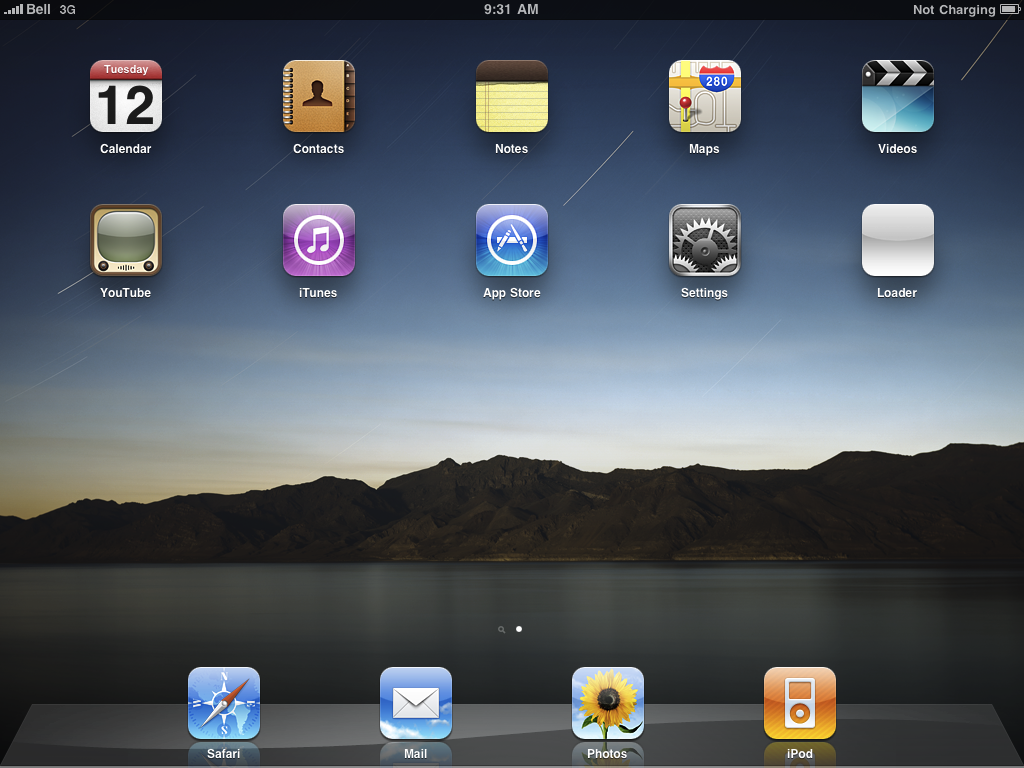
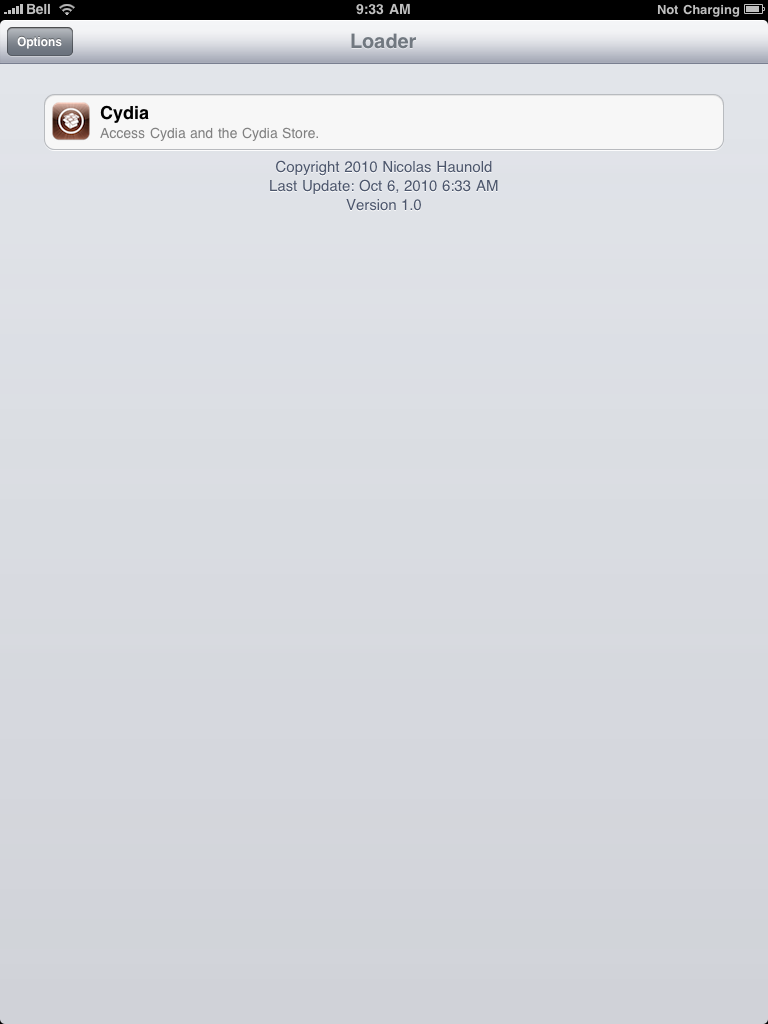
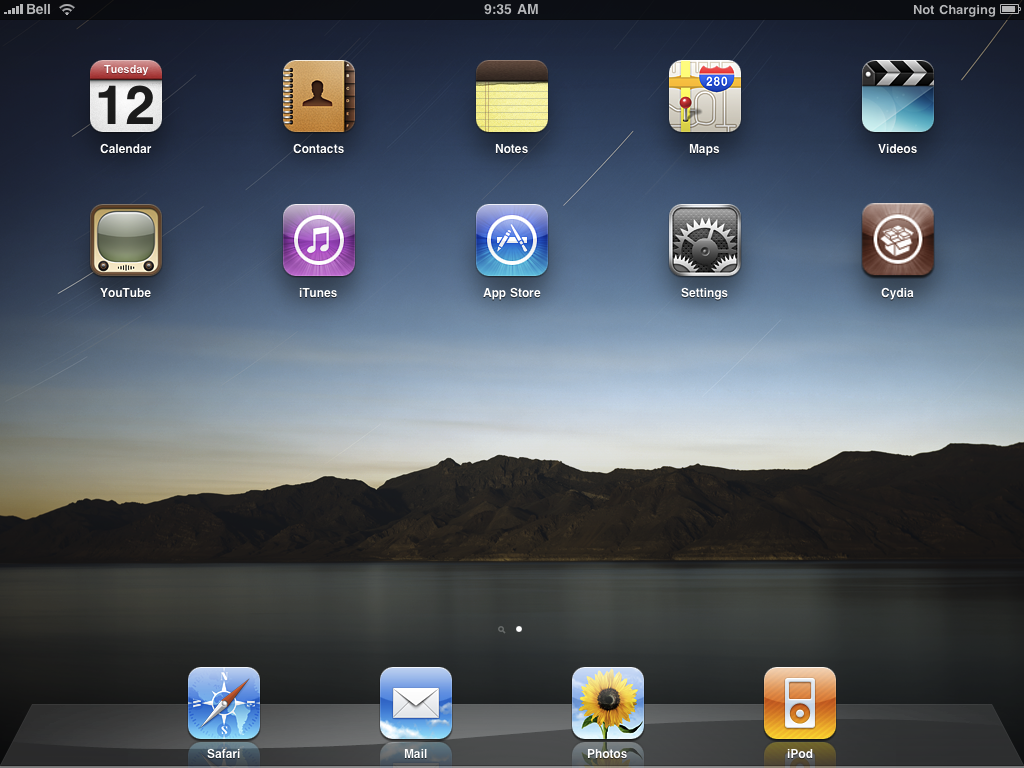
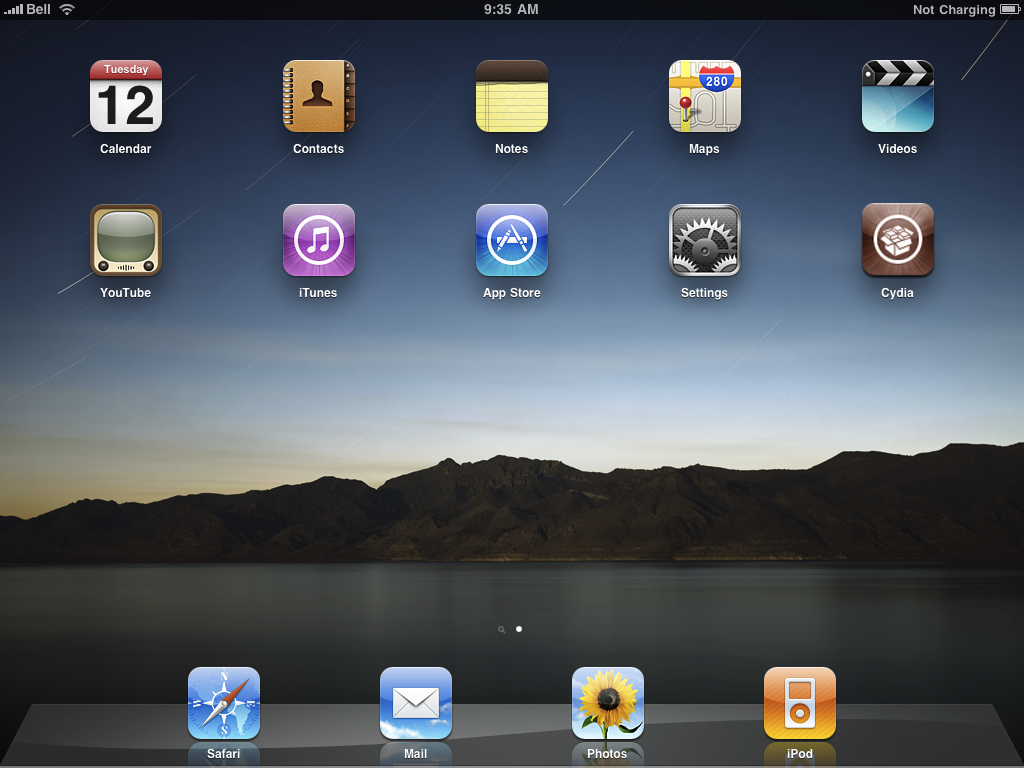
    After the iPhone restarts you'll have a new Loader application on your Springboard. Press to launch it.


    Step Ten
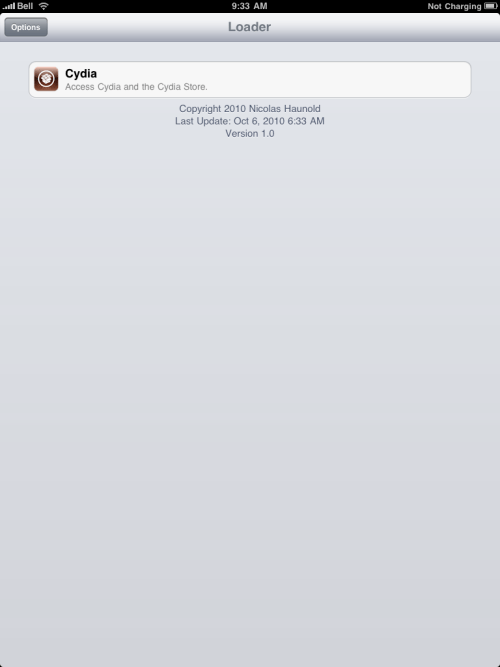
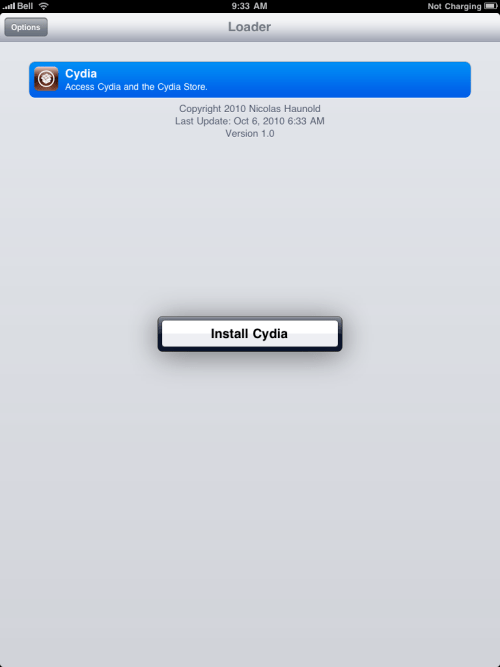
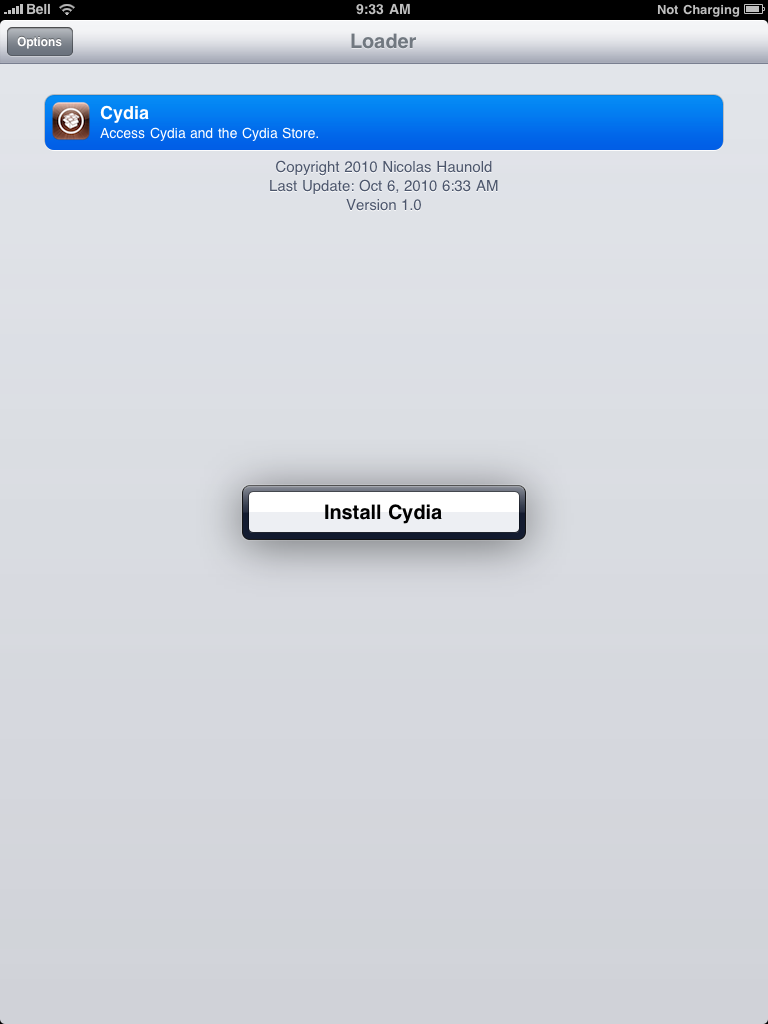
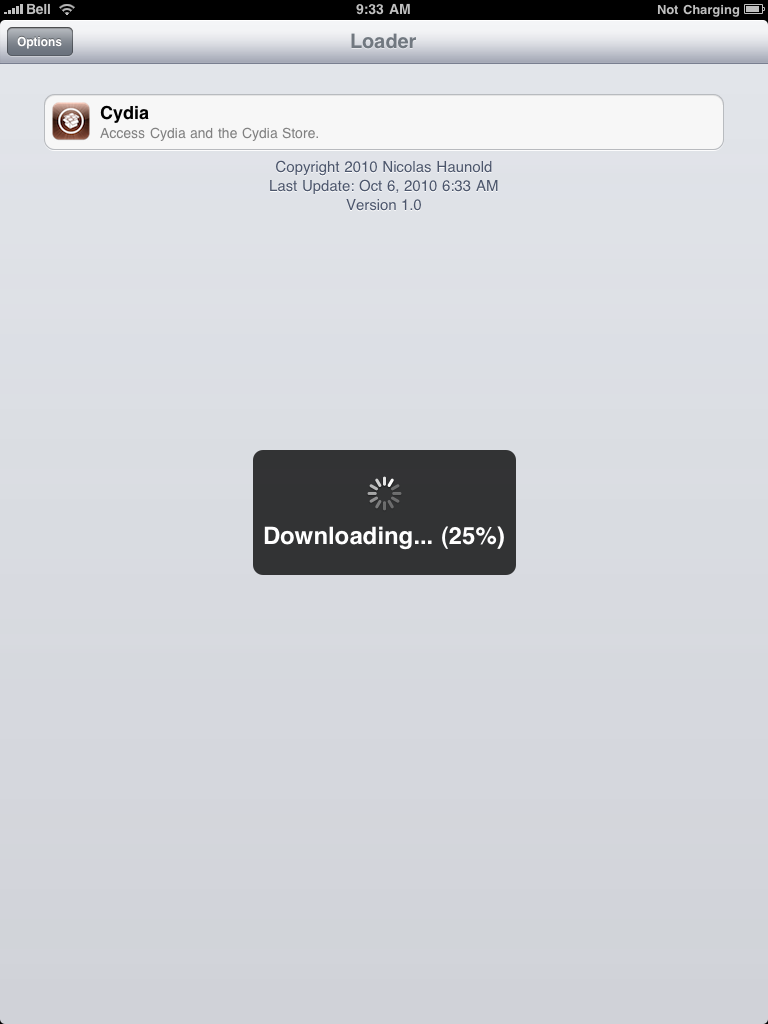
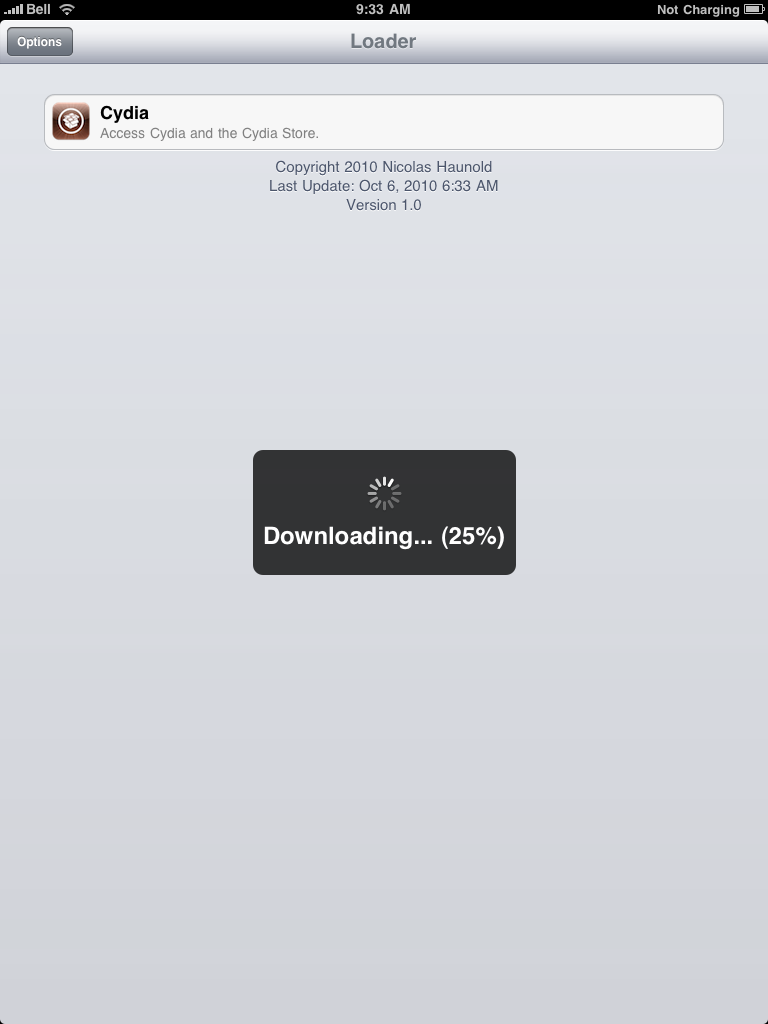
    Press to select Cydia then press the large Install Cydia button that appears.


    Step Eleven
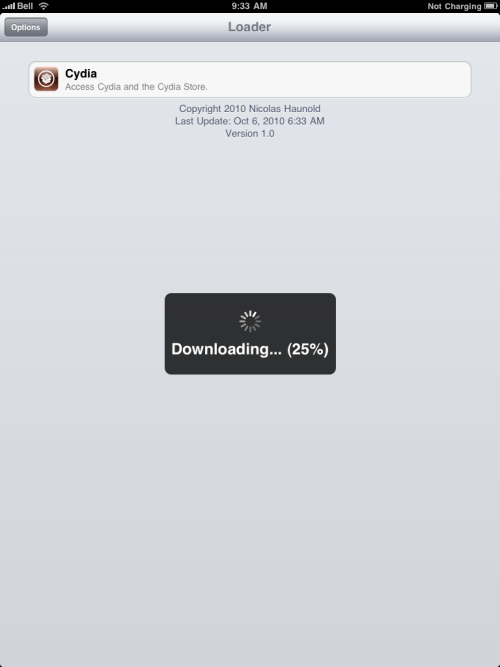
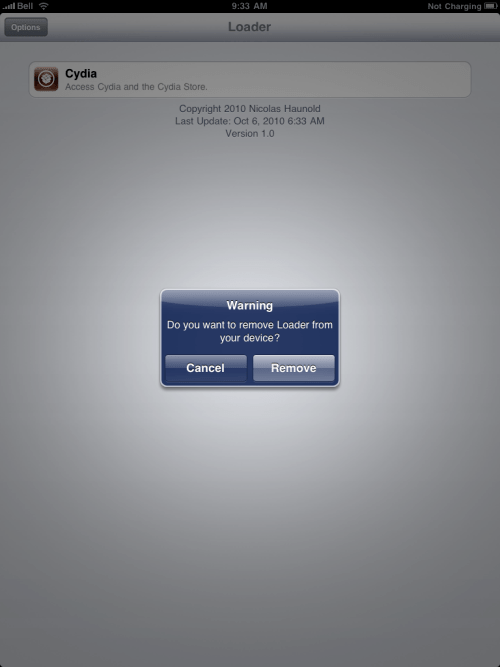
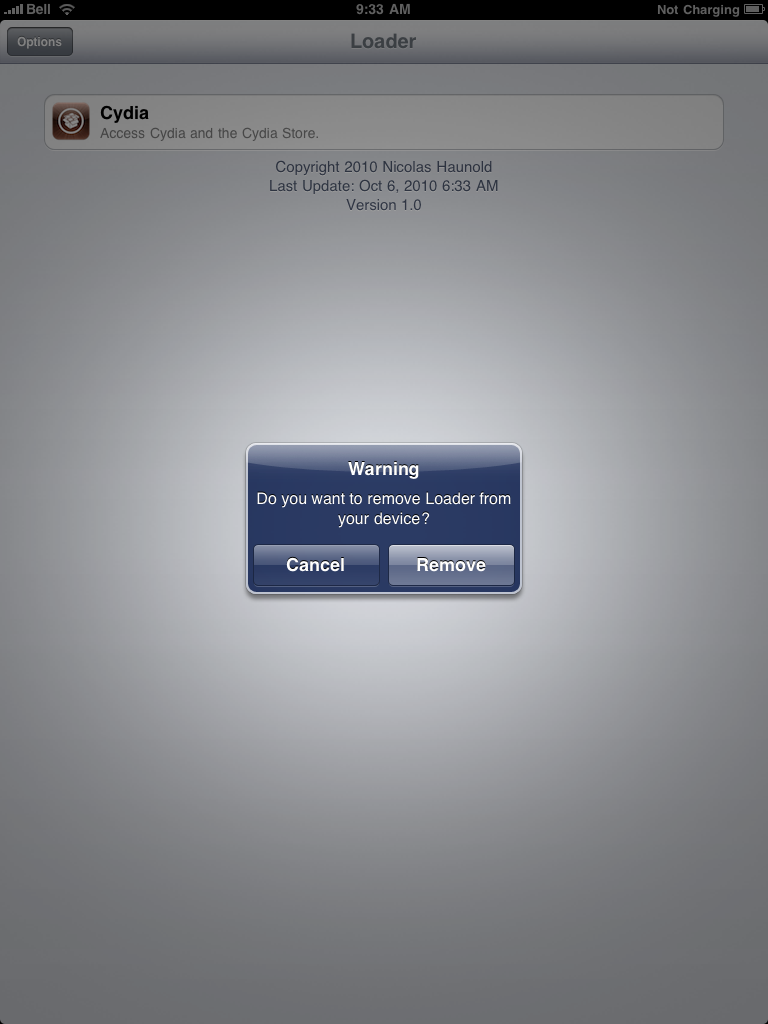
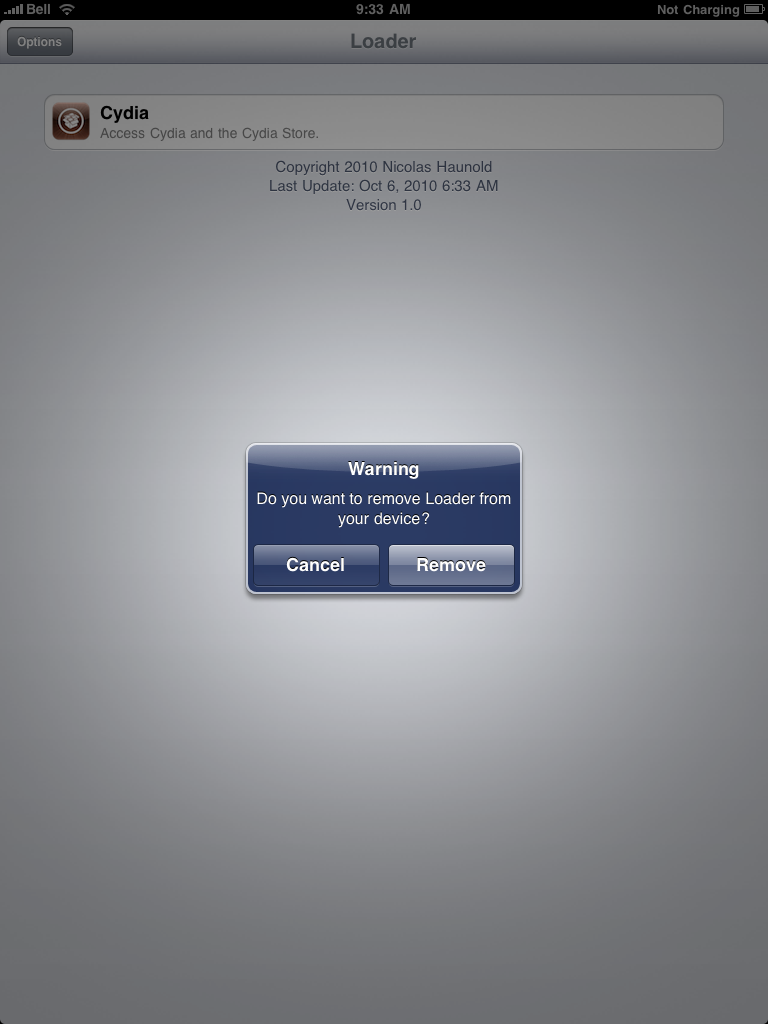
    Once Cydia has installed successfully you will be asked if you want to remove Loader from your device. Press the Remove button then press the Home button. Your device will now automatically reboot.


    Step Twelve
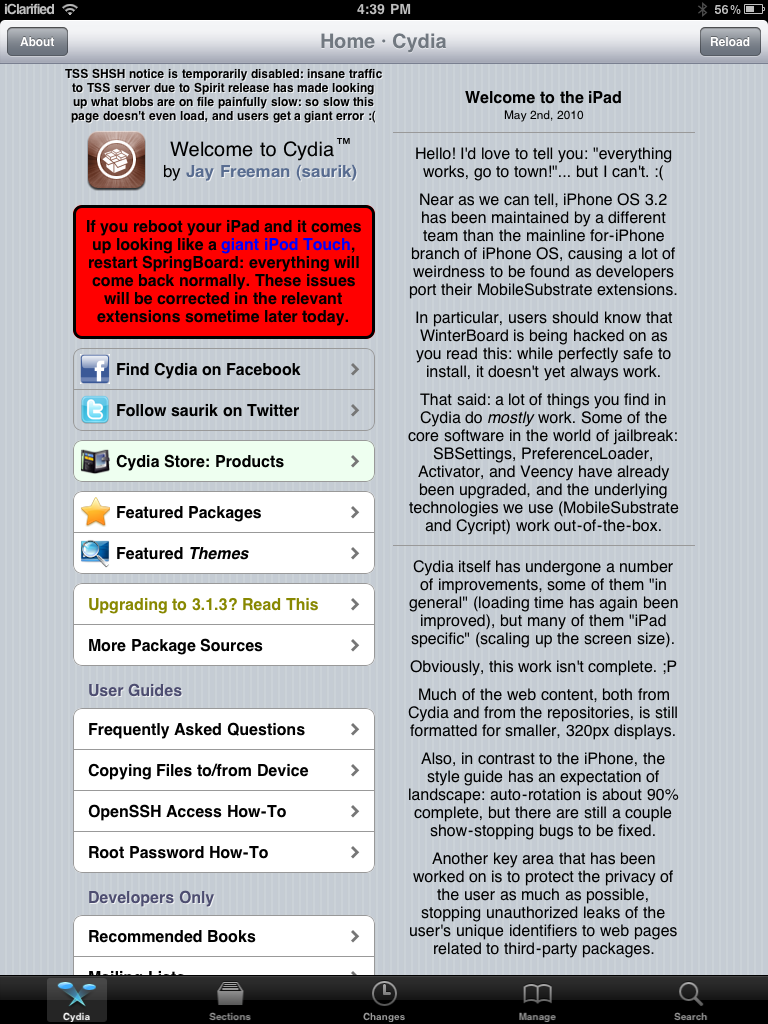
    When your iPad has restarted you can run Cydia. Let it do all the necessary updates.


    Thats it you are DOne !

    How to Jailbreak Your iPad Using Greenpois0n (Mac)

    Follow the Steps mentioned below :-

    Step One
    Open your web browser of choice and navigate to http://www.greenpois0n.com. Click the Mac link at the bottom of the screen.


    Step Two
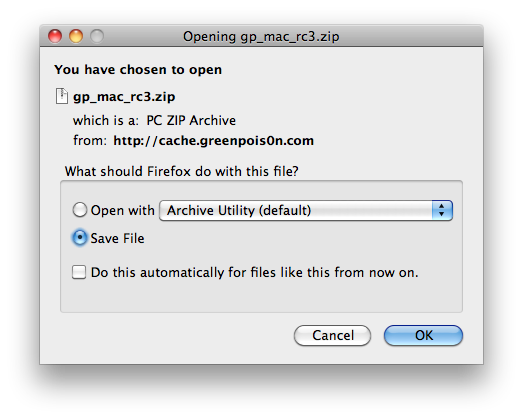
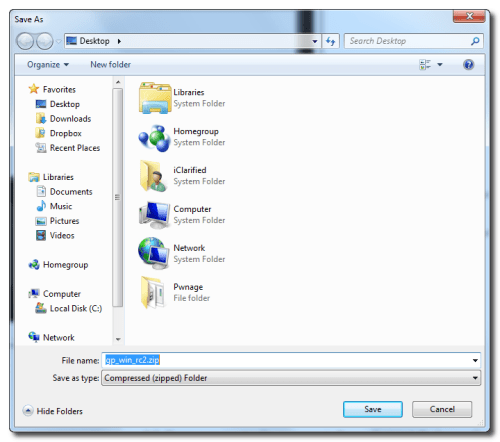
    When prompted save the download to your desktop

    Step Three
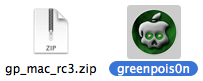
    Double click the downloaded gp_mac_rc3.zip file to extract the archive then double click greenpois0n from the desktop to launch the application

    Step Four
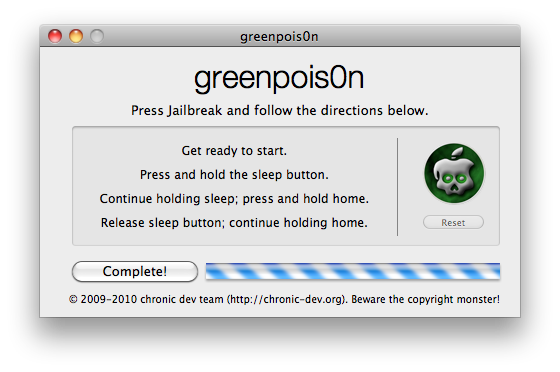
    Connect your iPad to the computer, power it off, then click the large Jailbreak button


    Step Five
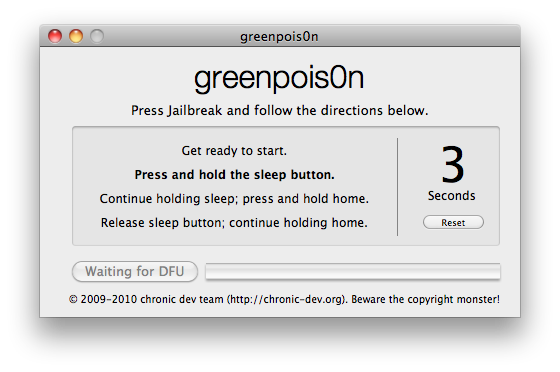
    You will now be instructed on how to place your iPad into DFU mode.

    You will be asked to press and hold the sleep button for 3 seconds.


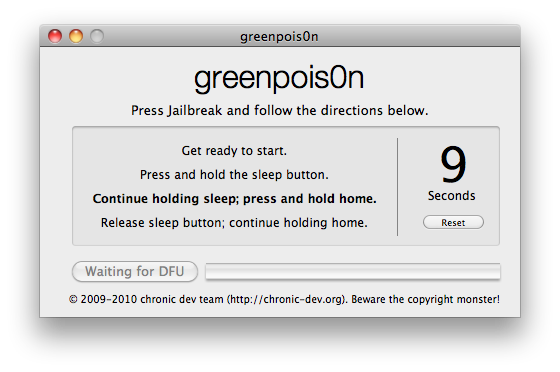
    Continue holding sleep; press and hold home for 10 seconds.


    Release sleep button; continue holding home for 15 seconds.


    Step Six
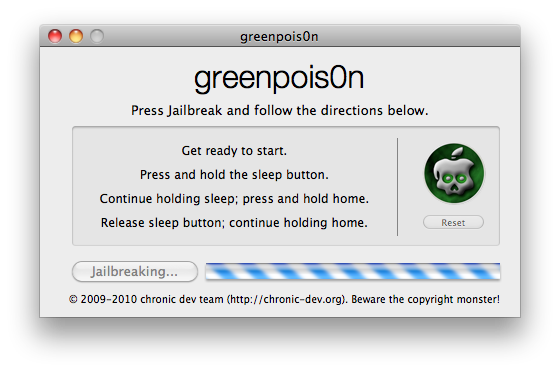
    Once your iPad is successfully in DFU mode the jailbreak will begin.


    Step Seven
    Click the Complete button once the software application has completed.


    You'll notice some verbose mode text scrolling on your device. 

    Step Eight
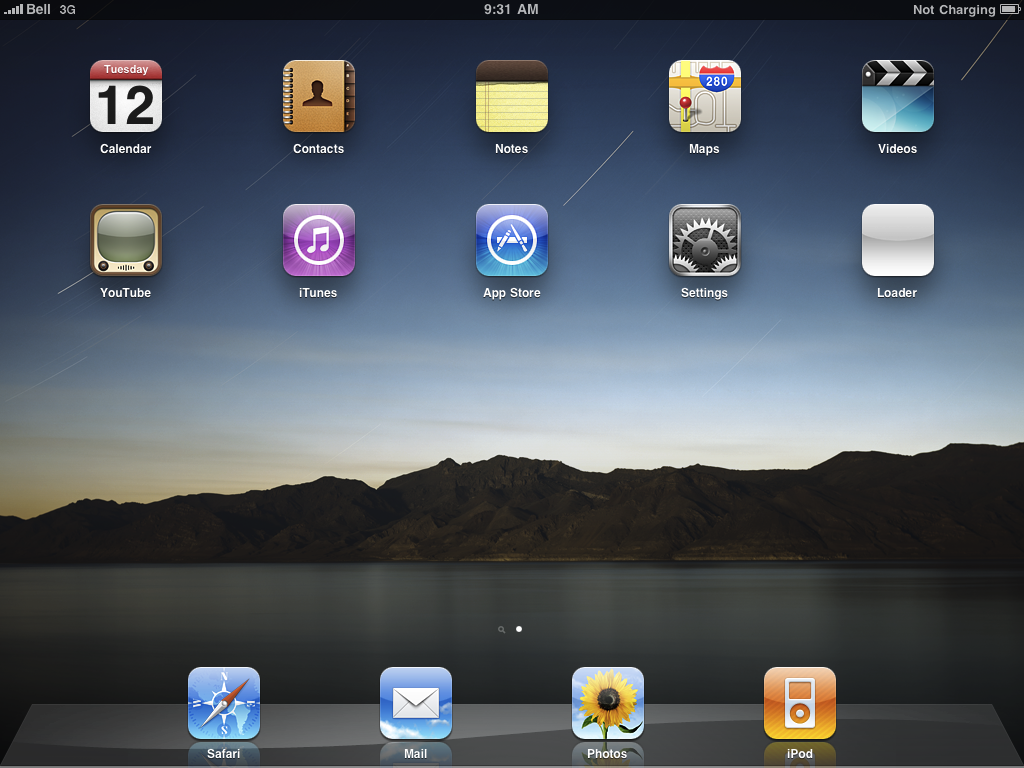
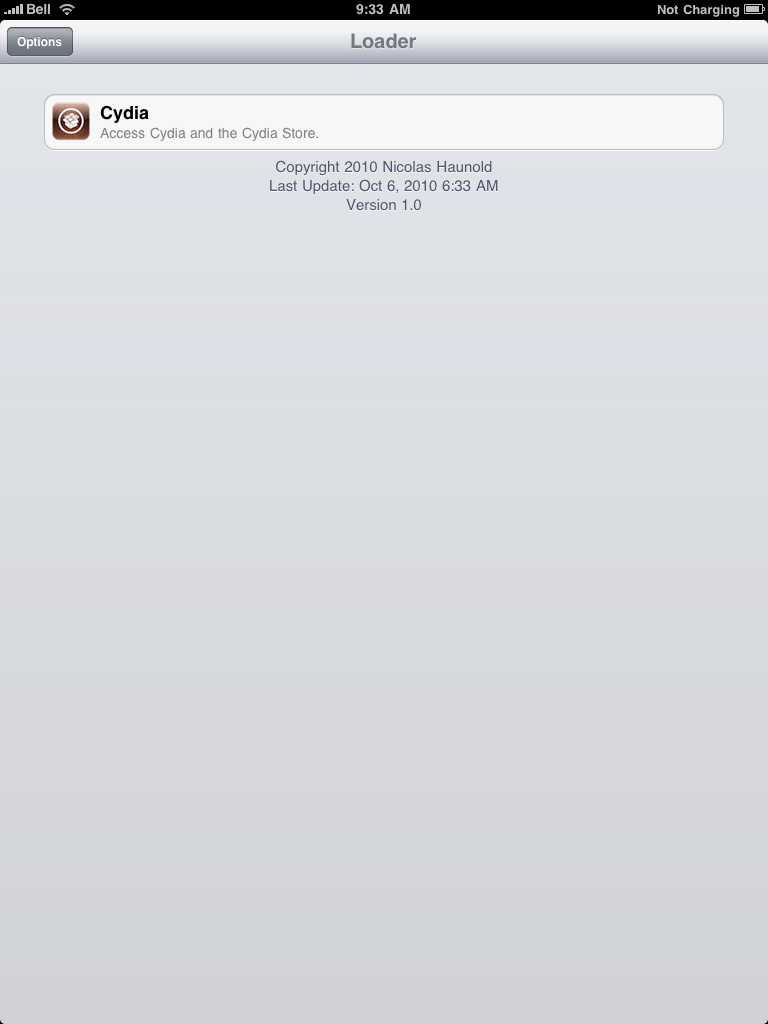
    After the iPad restarts you'll have a new Loader application on your Springboard. Press to launch it.


    Step Nine
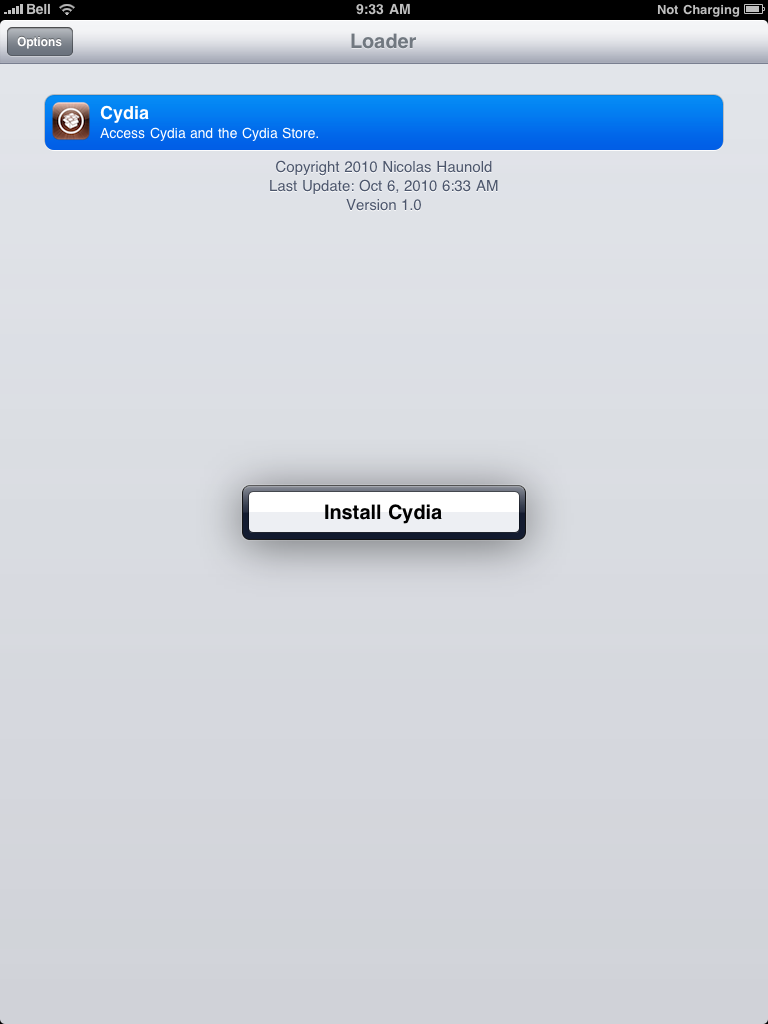
    Press to select Cydia then press the large Install Cydia button that appears.


    Step Ten
    Once Cydia has installed successfully you will be asked if you want to remove Loader from your device. Press the Remove button then press the Home button. Your device will now automatically reboot.


    Step Eleven
    When your iPad has restarted you can run Cydia. Let it do all the necessary updates.


    Thats it you are DOne !!

    Monday, October 11, 2010

    Jailbreak iPad using Limera1n for Windows

     how to jailbreak your iPad using Limera1n for Windows.

    Step One
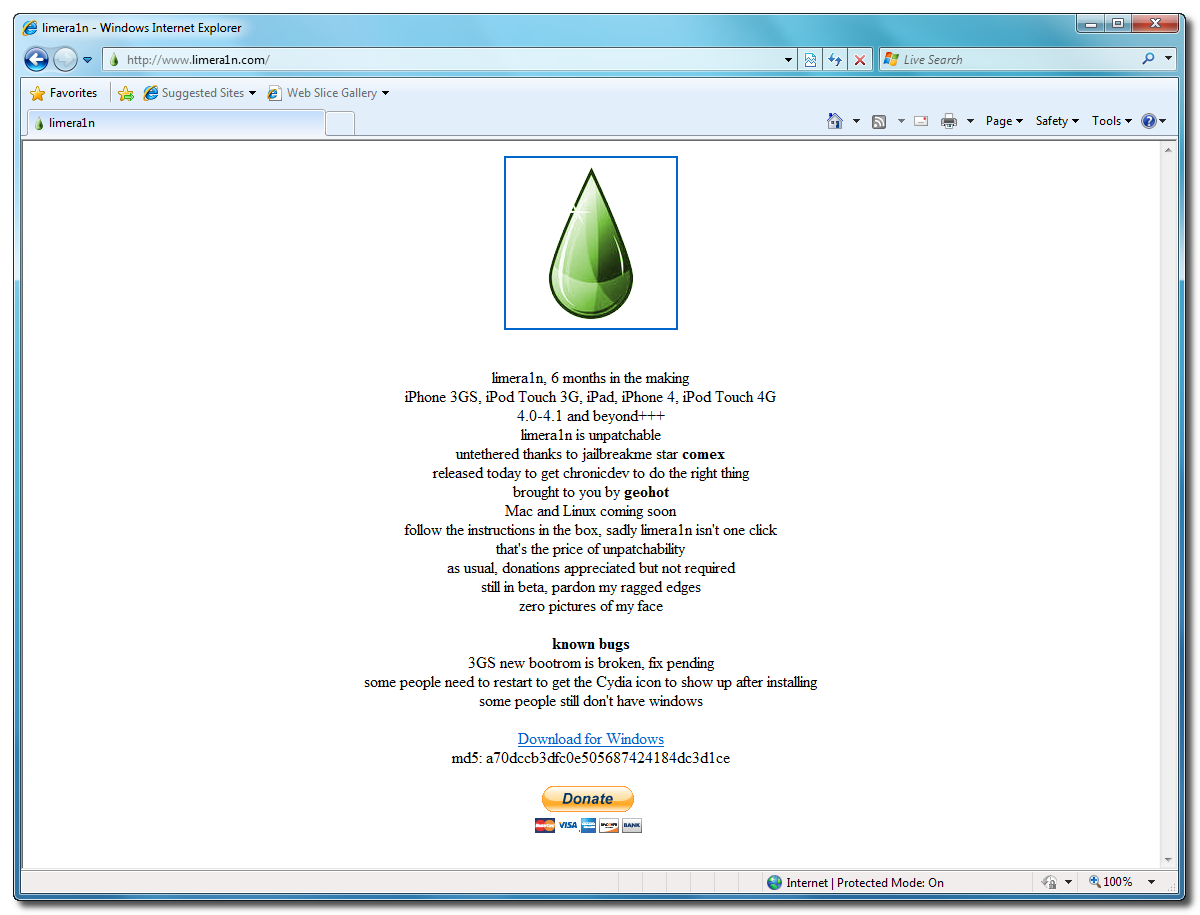
    Open your web browser of choice and navigate to http://www.limera1n.com. Click the Download for Windowslink at the bottom of the screen.


    Step Two
    When prompted save the download to your desktop


    Step Three
    Double click the limera1n.exe file from the desktop to launch the application


    Step Four
    Click the large make it ra1n button


    Step Five
    You iPad will now be placed in recovery mode. 


    Press both the power and the home buttons.


    When Limera1n asks you to, release the power button.


    Your phone will now be in DFU mode


    As limera1n performs its exploit you will see the image of a lime raindrop on your iPad. 


    Limera1n will let you know when it is complete.


    Step Six
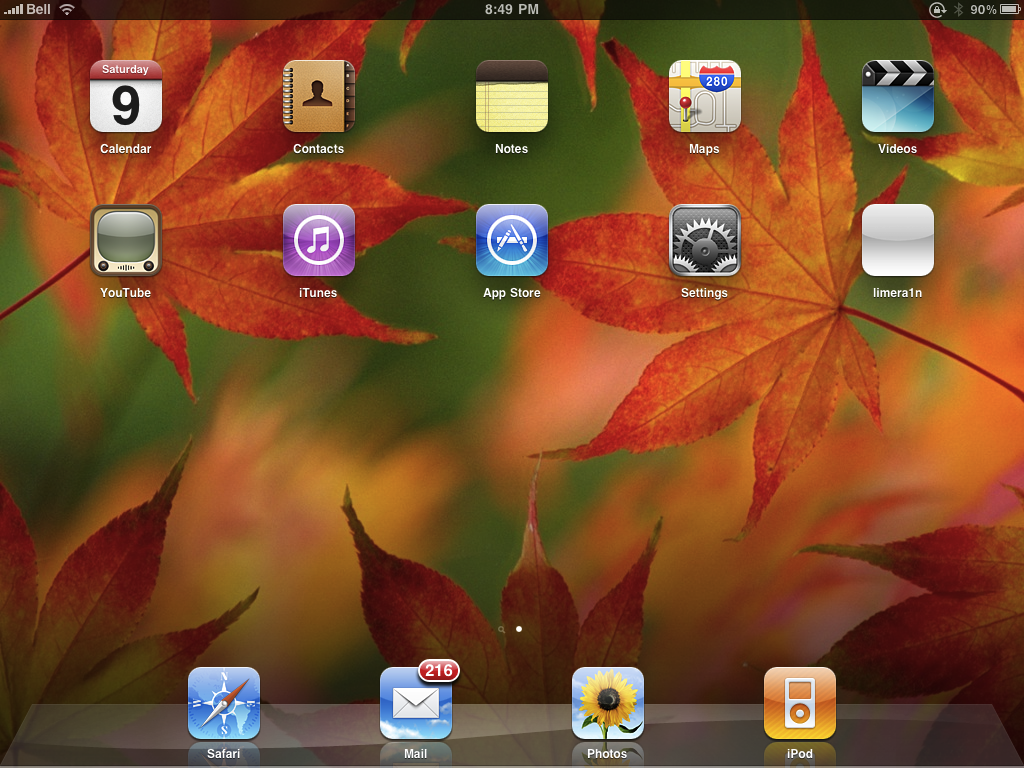
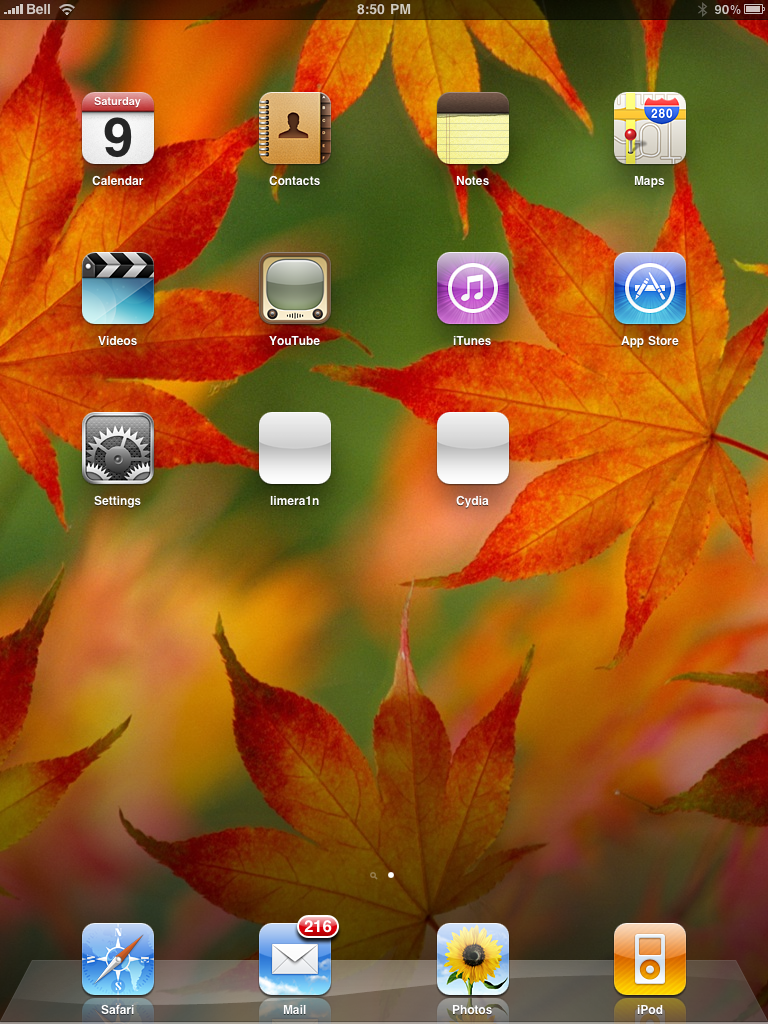
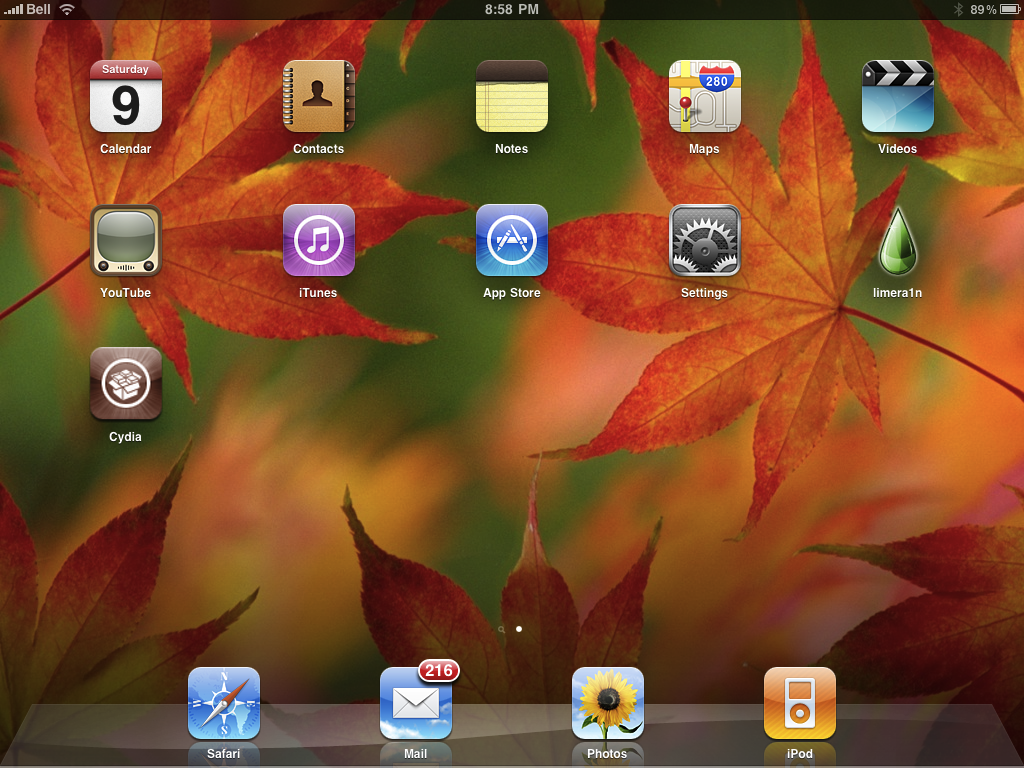
    After you power back on your iPad you will see a new icon on the SpringBoard entitled limera1n. Press it to continue.


    Step Seven
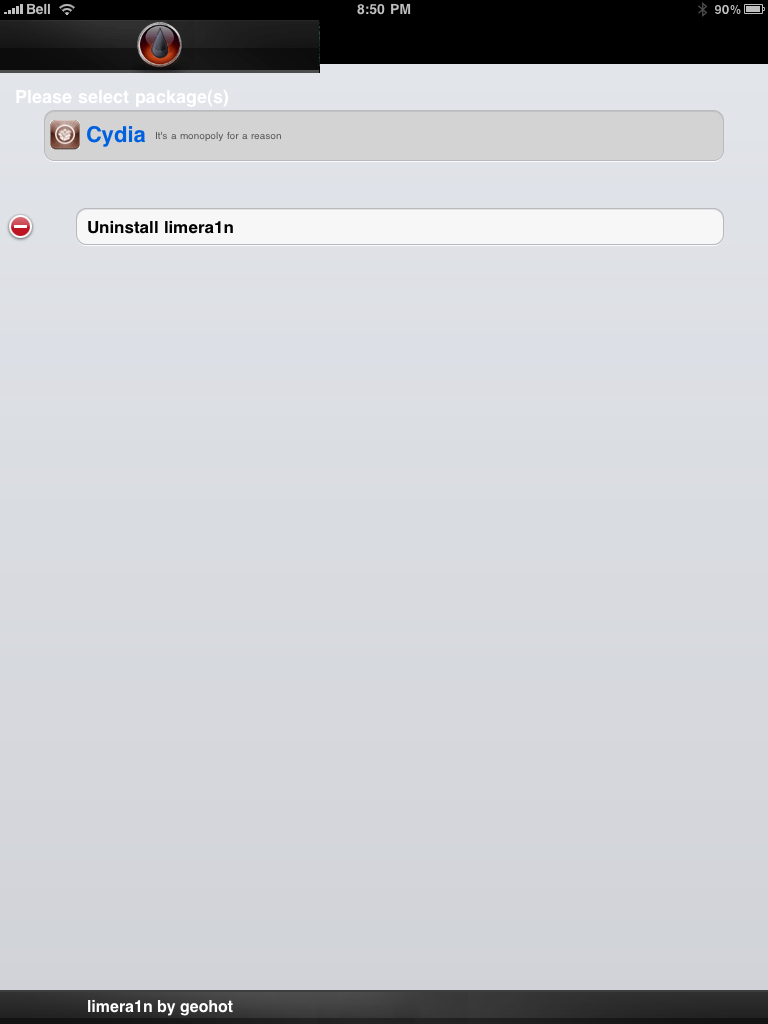
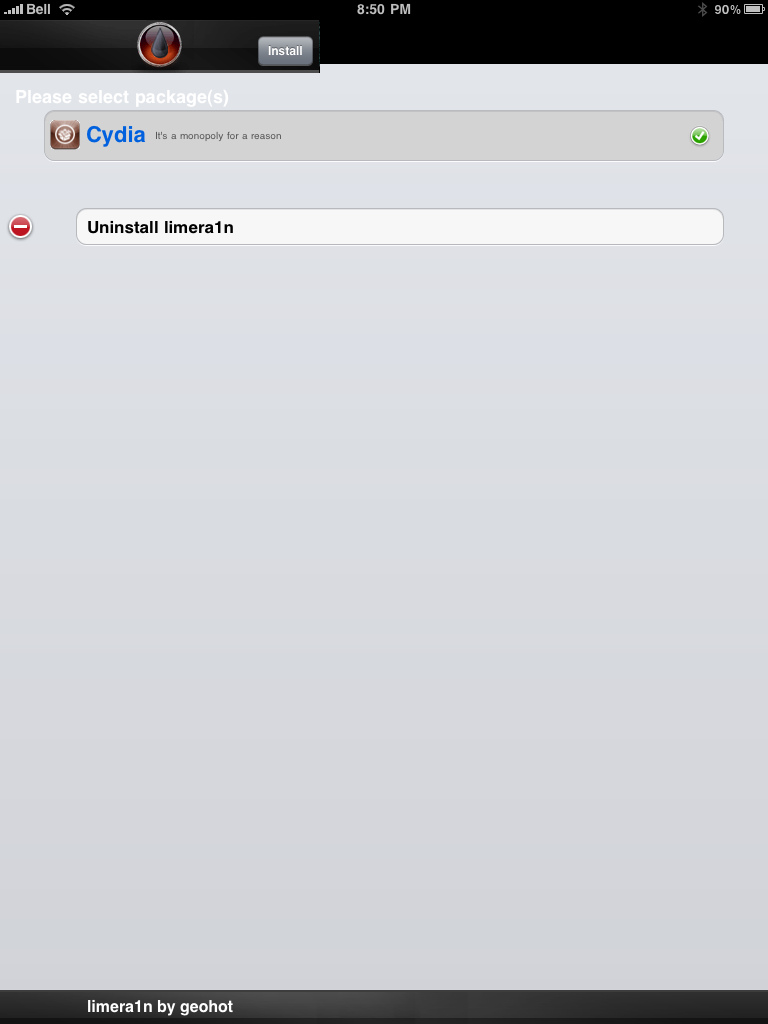
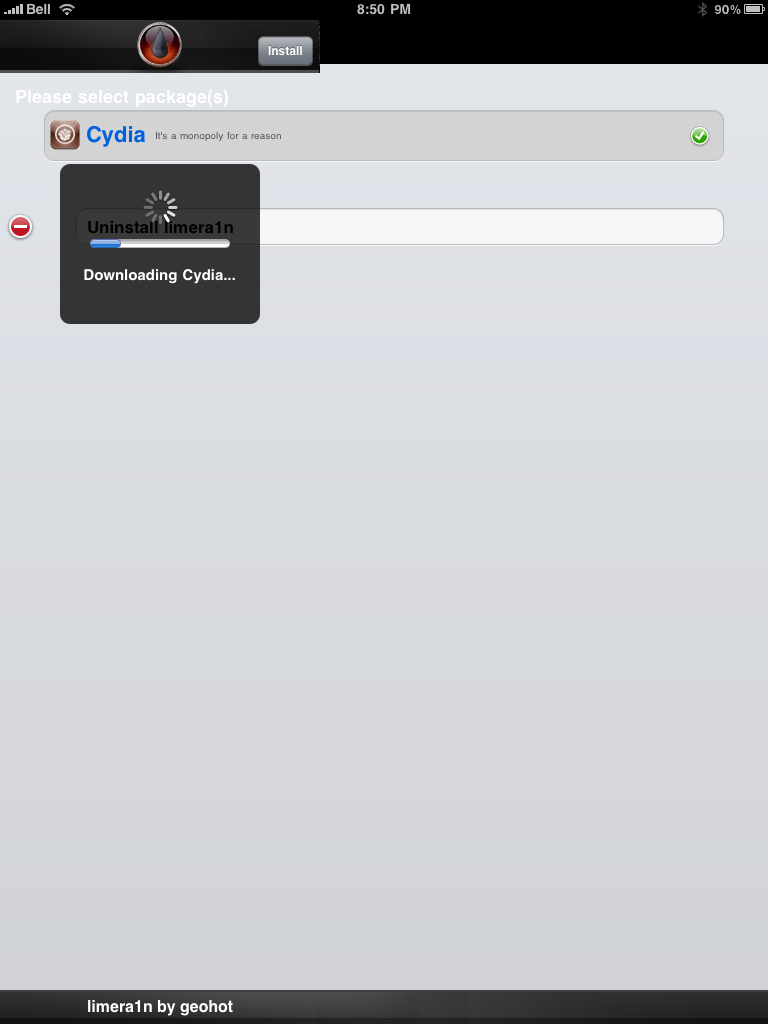
    Once Limera1n opens select Cydia then press the Install button at the top right of the screen.


    Step Eight
    Once the Cydia installation has completed you must reboot your iPad.


    Step Nine
    When your iPad has restarted you can run Cydia. Let it do all the necessary updates.
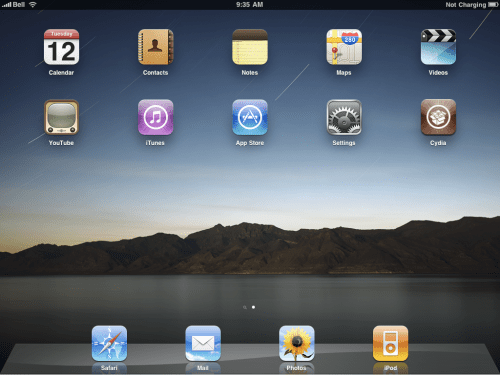


    Thats it done !
    Wednesday, September 15, 2010

    NEW iOS 4.2 on the iPad !

    iOS 4.2 on the iPad
     

    New Features:
    ● Multitasking
    ● Folders
    AirPrint
    ● AirPlay
    ● Game Center
    ● Even better Mail
    ● Find text on web pages
    ● Enhanced enterprise support
    ● Accessibility enhancements
    ● Keyboard and dictionary enhancements

    Other Observations:
    ● The external switch is acting as a mute switch again.
    ● Only 6 apps in the multitasking bar when you hold your iPad in portrait mode.
    ● You can now create folders (containing up to 20 apps).
    ● You can activate AirPlay from the photo app; to stream photos to the new Apple TV.
    ● Notes font can be changed
    ● New Brightness widget


    Friday, August 20, 2010

    Is Your PSP Hackable ?

    PSP ModelFirmwareHack StatusComments / Links
    PSP-1000 or PSP-2000 (non TA-088v3)ALLYesUse Dark_AleX’s DC8 in conjunction with a Pandorabattery. Search our PSP Tutorialsto get started.
    PSP-2000 (TA-088v3) or PSP-30005.03 and earlierYesUpgrade to firmware 5.03 if you’re running an earlier version. UseChickHEN to enable homebrew.
    PSP-2000 (TA-088v3) or PSP-30005.50 – 5.51NoNo publicly released hacks or exploits. Upgrade to 6.20.
    PSP-2000 (TA-088v3) / PSP-3000 / PSP-N1001 (PSPgo)6.00 – 6.20YesUse Half Byte Loader via thePatapon 2 Demo Exploit to load user-mode homebrew. There is currently no kernel-level/custom firmware access.
    PSP-2000 (TA-088v3) / PSP-3000 / PSP-N1001 (PSPgo)6.30NoNo publicly released hacks or exploits.

    Friday, July 9, 2010

    Run iPad Applications in the Background


    These are instructions on how to run iPad applications in the background using Backgrounder.
    Step One
    Condition one: iPad should be JailBreak if not please check my Blog link for Jailbreaking iPad -here.
    Step Two
    Press to launch 
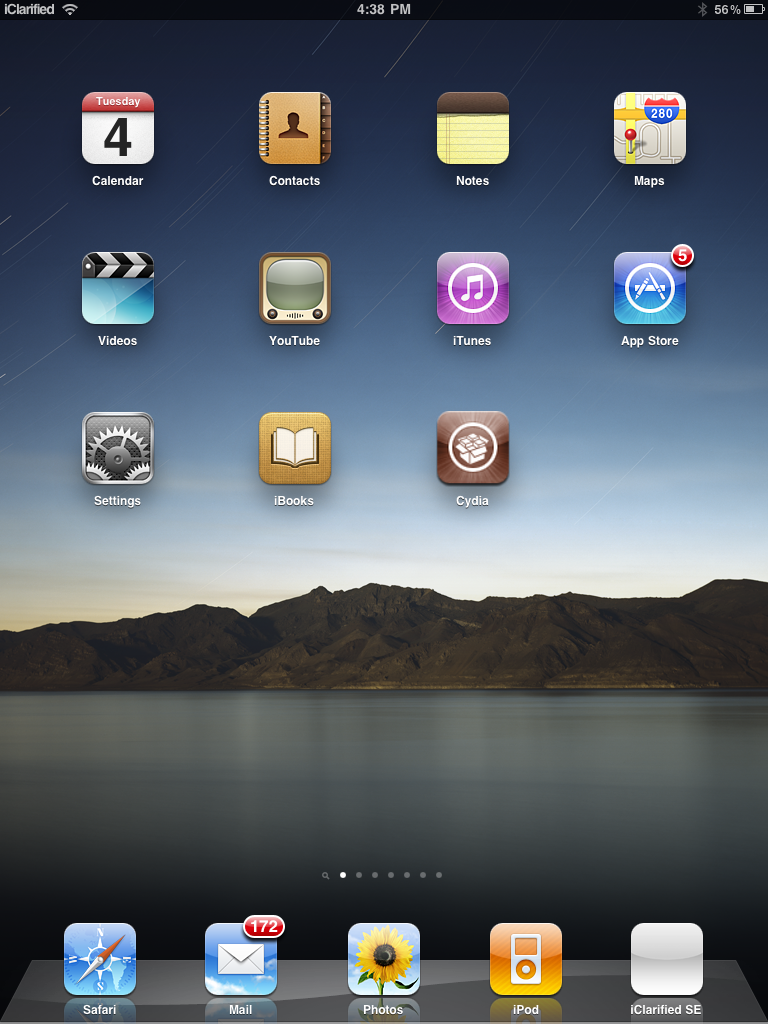
    Cydia from the Springboard.


    Step Three
    Press to choose 
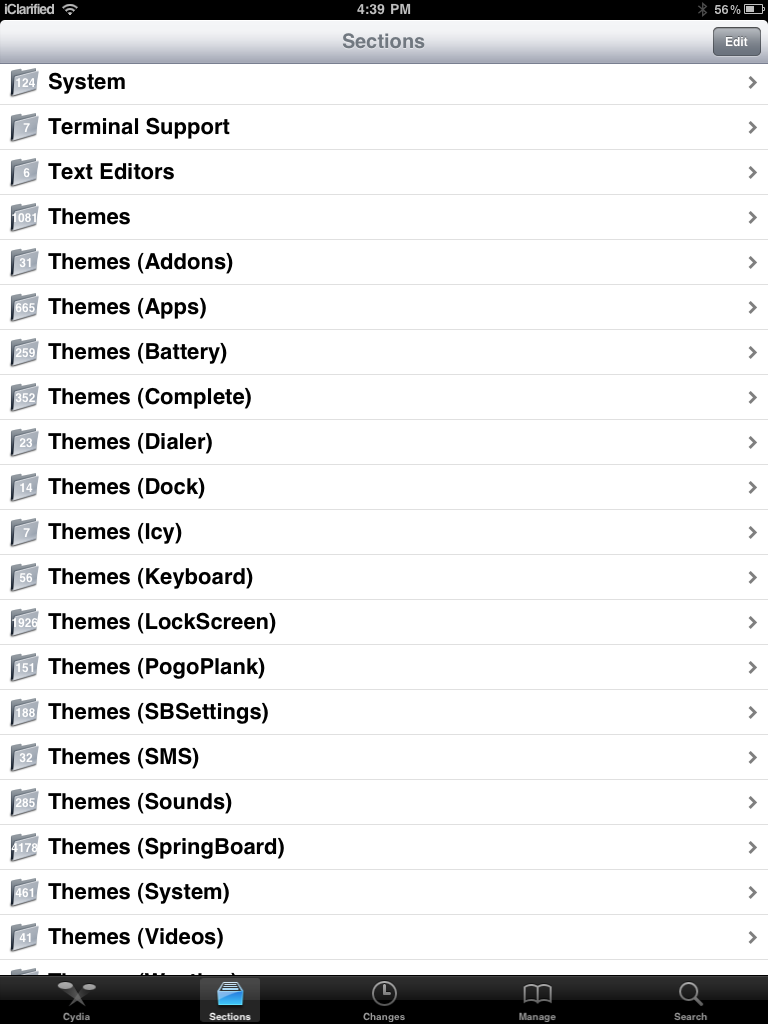
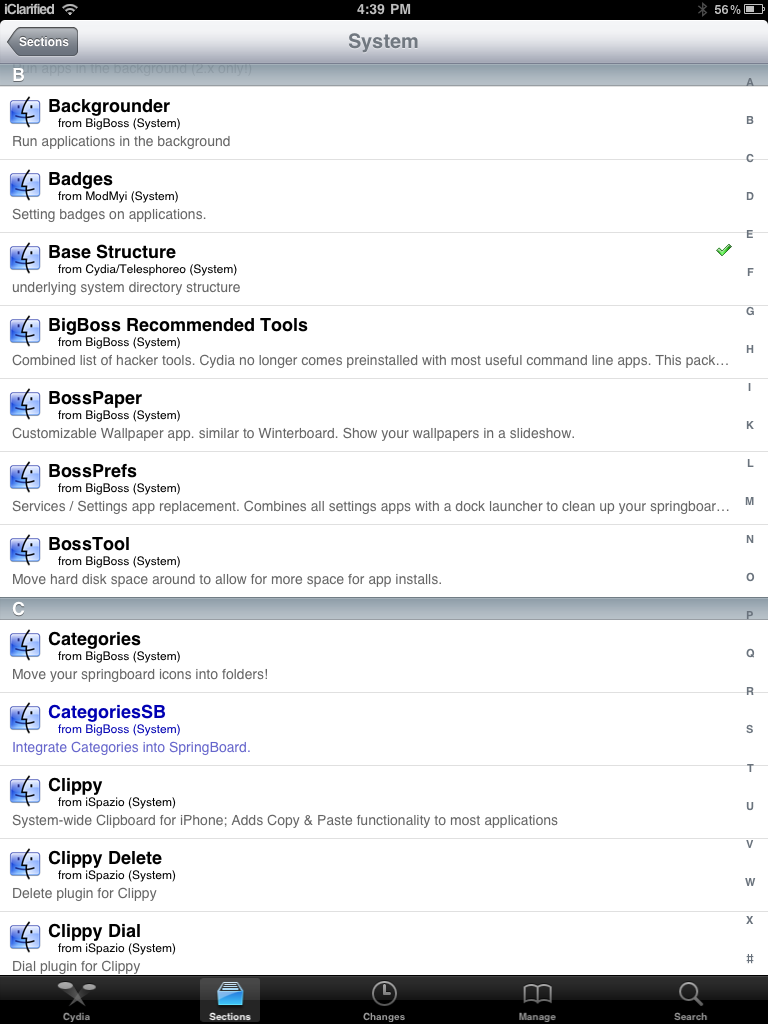
    Sections from the tabs at the bottom of the screen.


    Step Four
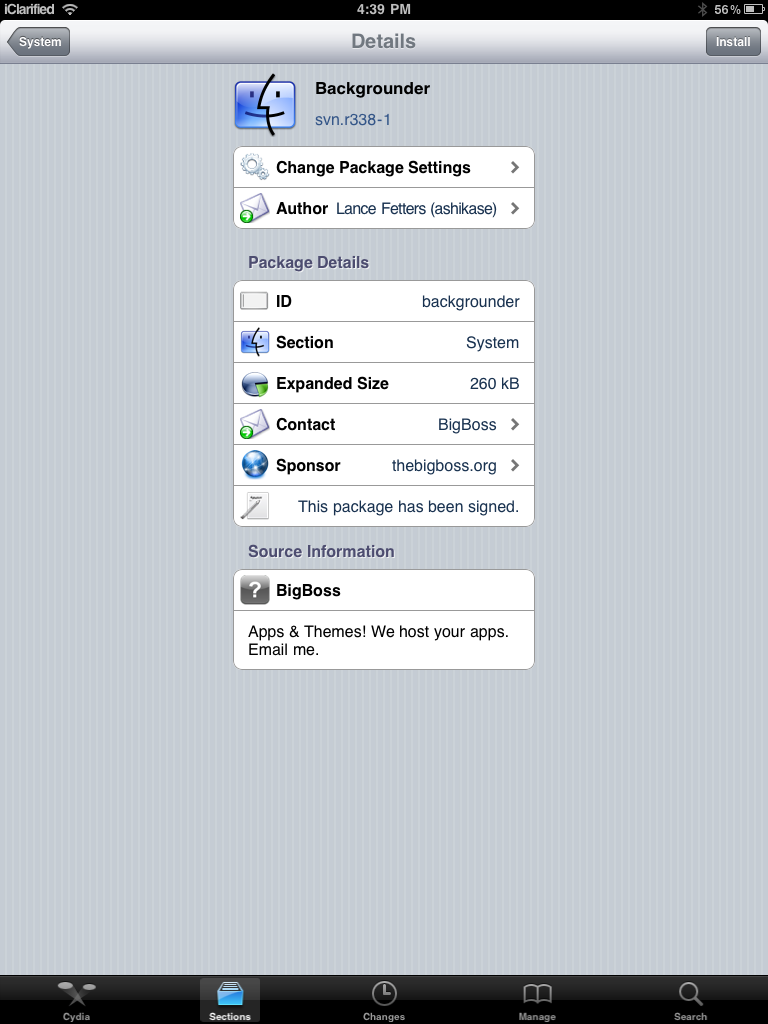
    Press to select 
    System from the list of Sections.


    Step Five
    Press to select 
    Backgrounder from the list of Packages


    Step Six
    Press the 
    Install button at the top right of the screen.


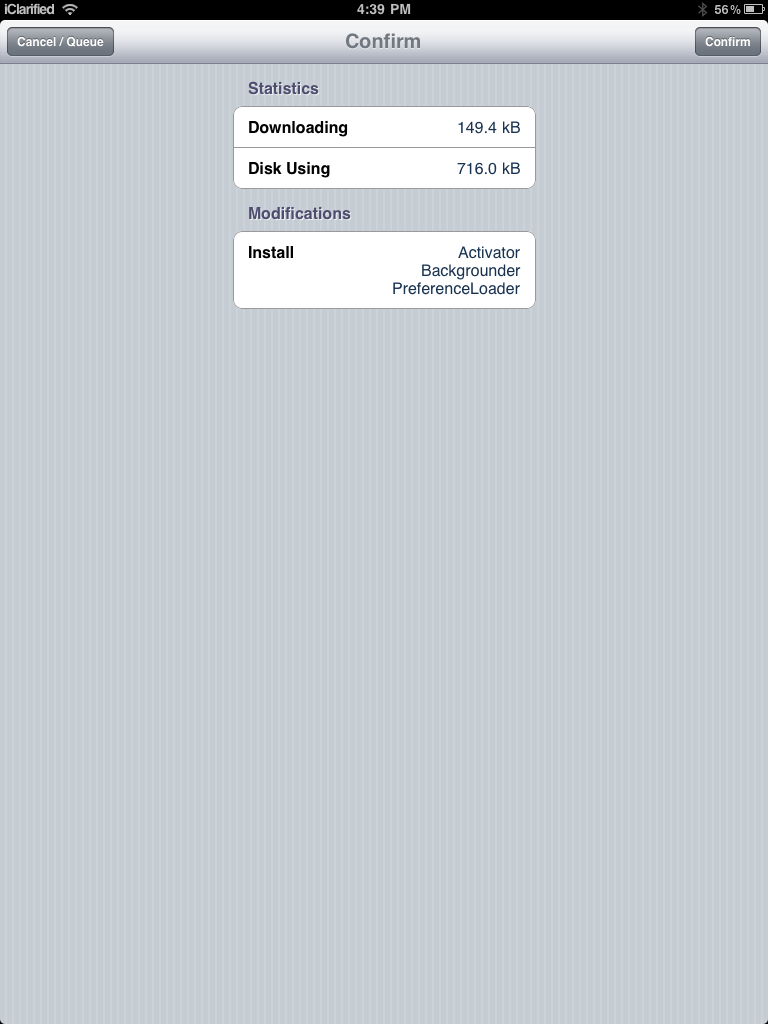
    Step Seven
    Press the 
    Confirm button to begin installation.


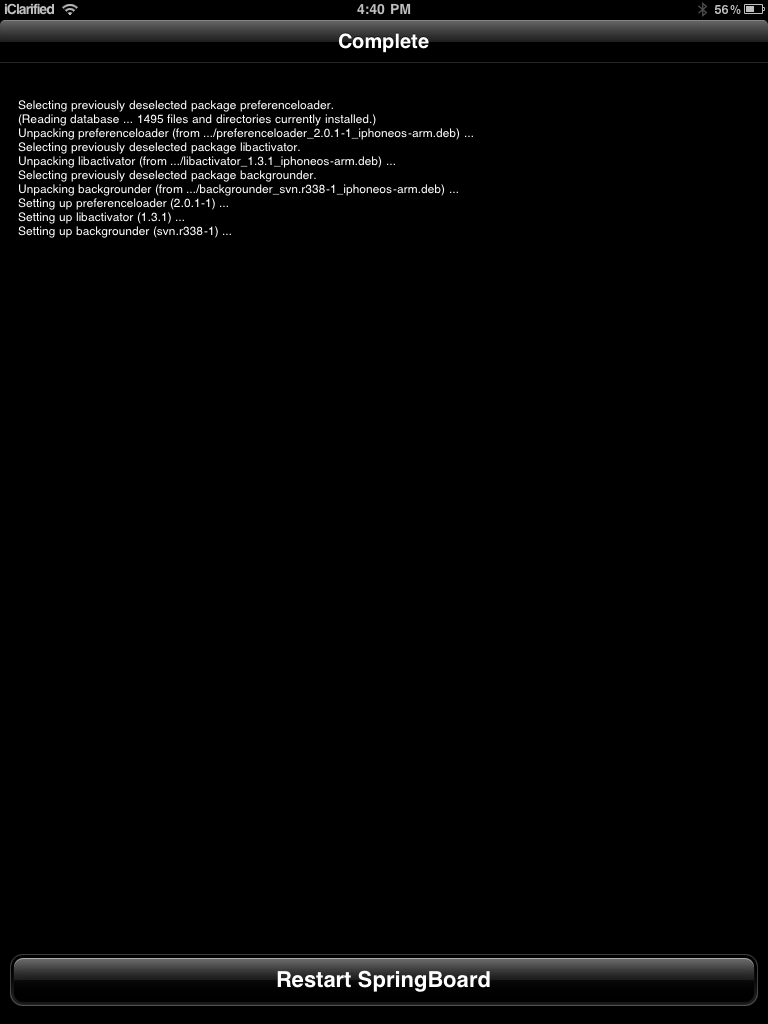
    Step Eight
    Once the installation has completed successfully you can press the large 
    Restart Springboard button.


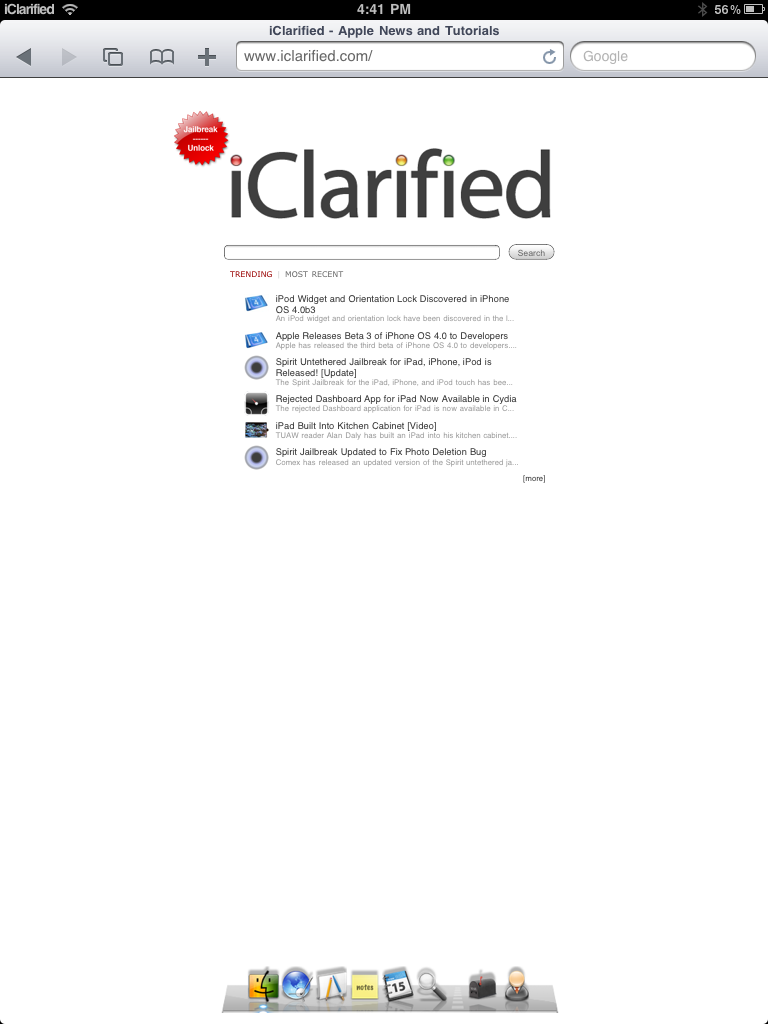
    Step Nine
    Now open the application you would like to run in the background. Press and hold the 
    Home button until you see a "Backgrounding enabled" message. 

    To stop an application from running in the background press and hold the 
    Home button until you see a "Backgrounding disabled" message.

    Download iPad Firmware Files

    Below i have mentioned the links to download Firmware for iPad.

    3.2.0: iPad1,1_3.2_7B367_Restore.ipsw