


| PSP Model | Firmware | Hack Status | Comments / Links |
| PSP-1000 or PSP-2000 (non TA-088v3) | ALL | Yes | Use Dark_AleX’s DC8 in conjunction with a Pandorabattery. Search our PSP Tutorialsto get started. |
| PSP-2000 (TA-088v3) or PSP-3000 | 5.03 and earlier | Yes | Upgrade to firmware 5.03 if you’re running an earlier version. UseChickHEN to enable homebrew. |
| PSP-2000 (TA-088v3) or PSP-3000 | 5.50 – 5.51 | No | No publicly released hacks or exploits. Upgrade to 6.20. |
| PSP-2000 (TA-088v3) / PSP-3000 / PSP-N1001 (PSPgo) | 6.00 – 6.20 | Yes | Use Half Byte Loader via thePatapon 2 Demo Exploit to load user-mode homebrew. There is currently no kernel-level/custom firmware access. |
| PSP-2000 (TA-088v3) / PSP-3000 / PSP-N1001 (PSPgo) | 6.30 | No | No publicly released hacks or exploits. |
Friday, August 20, 2010
Is Your PSP Hackable ?


Friday, July 9, 2010
Run iPad Applications in the Background
These are instructions on how to run iPad applications in the background using Backgrounder.
Step One
Condition one: iPad should be JailBreak if not please check my Blog link for Jailbreaking iPad -here.
Step Two
Press to launch Cydia from the Springboard.
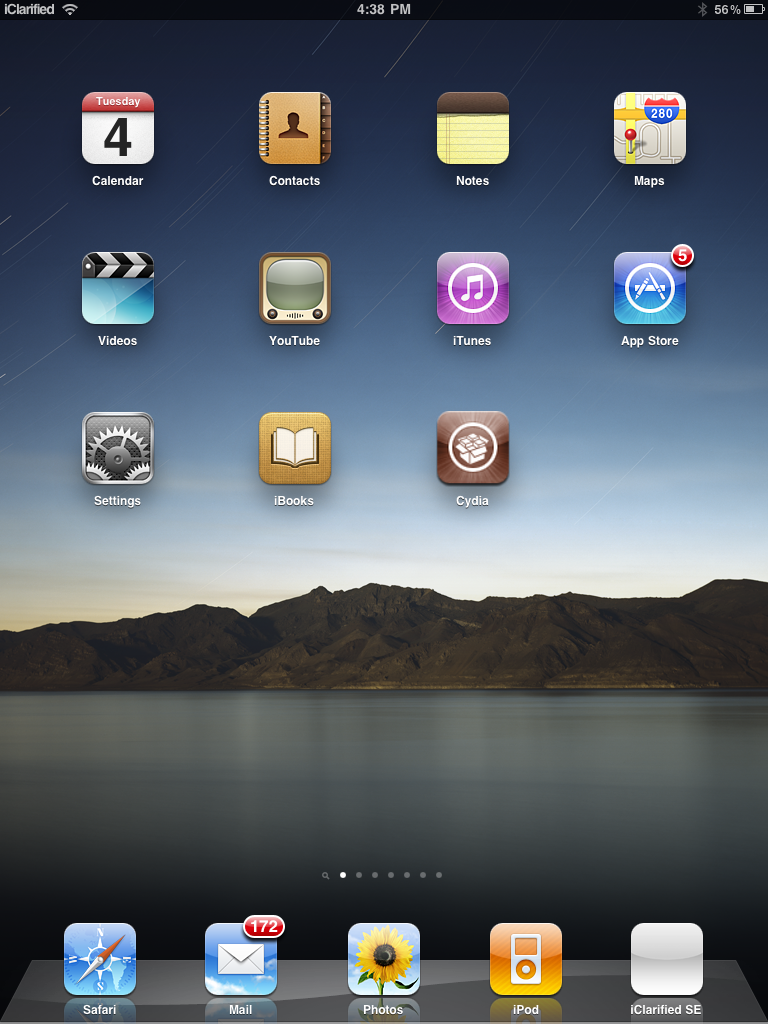
Step Three
Press to choose Sections from the tabs at the bottom of the screen.
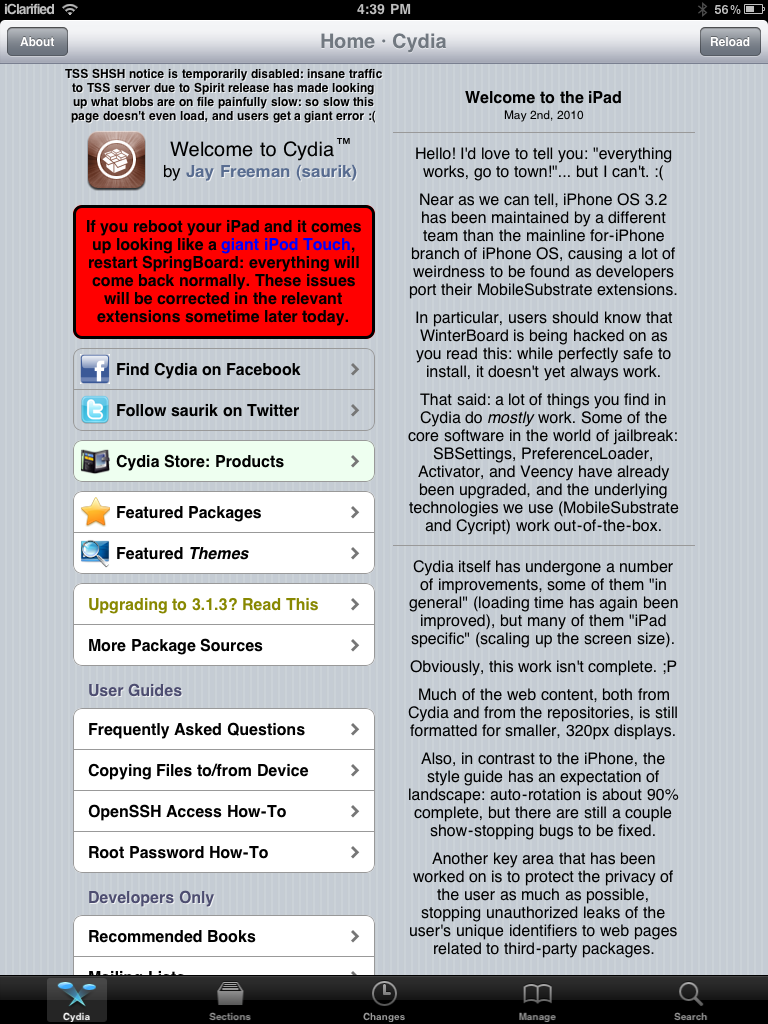
Step Four
Press to select System from the list of Sections.
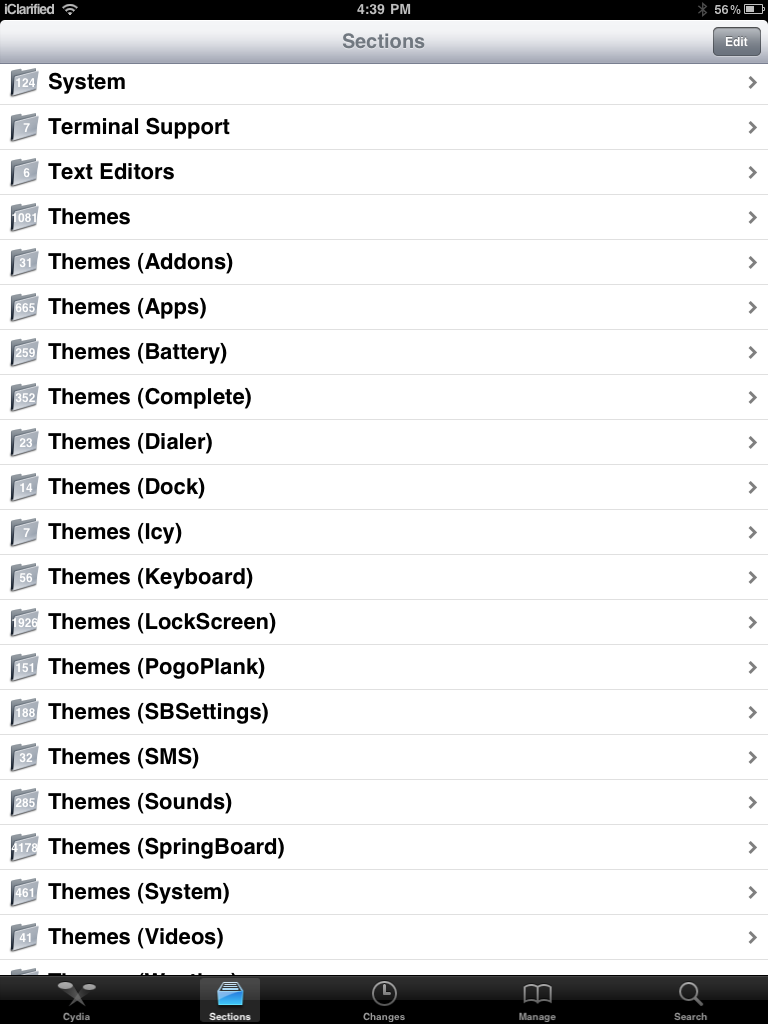
Step Five
Press to select Backgrounder from the list of Packages
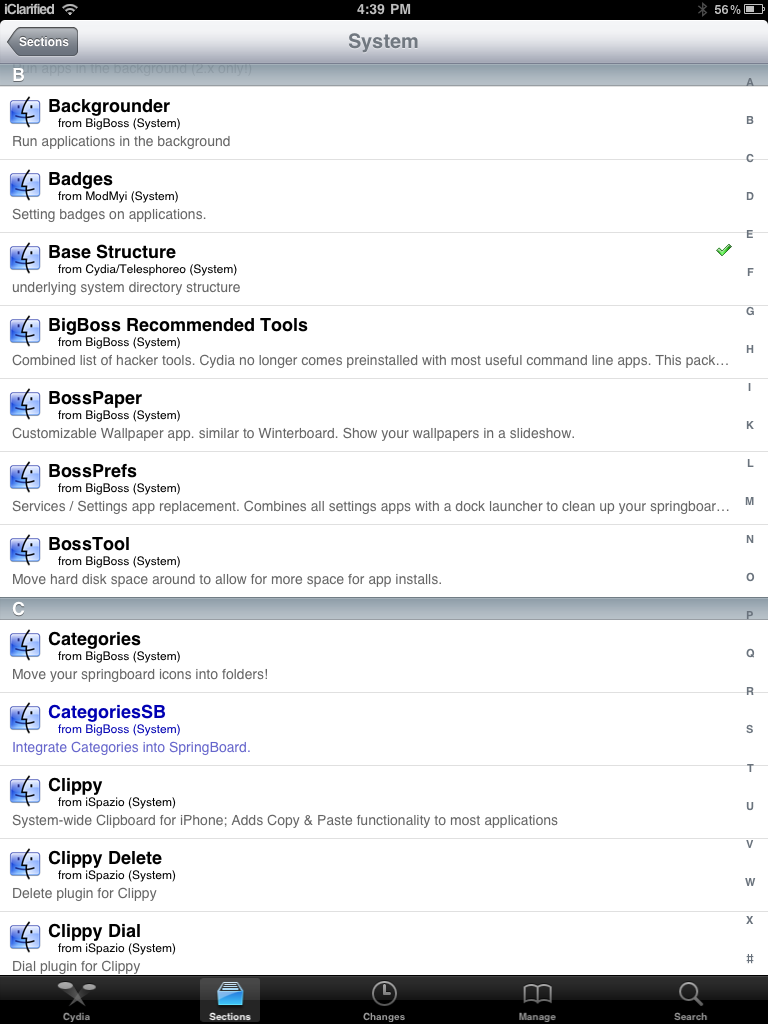
Step Six
Press the Install button at the top right of the screen.
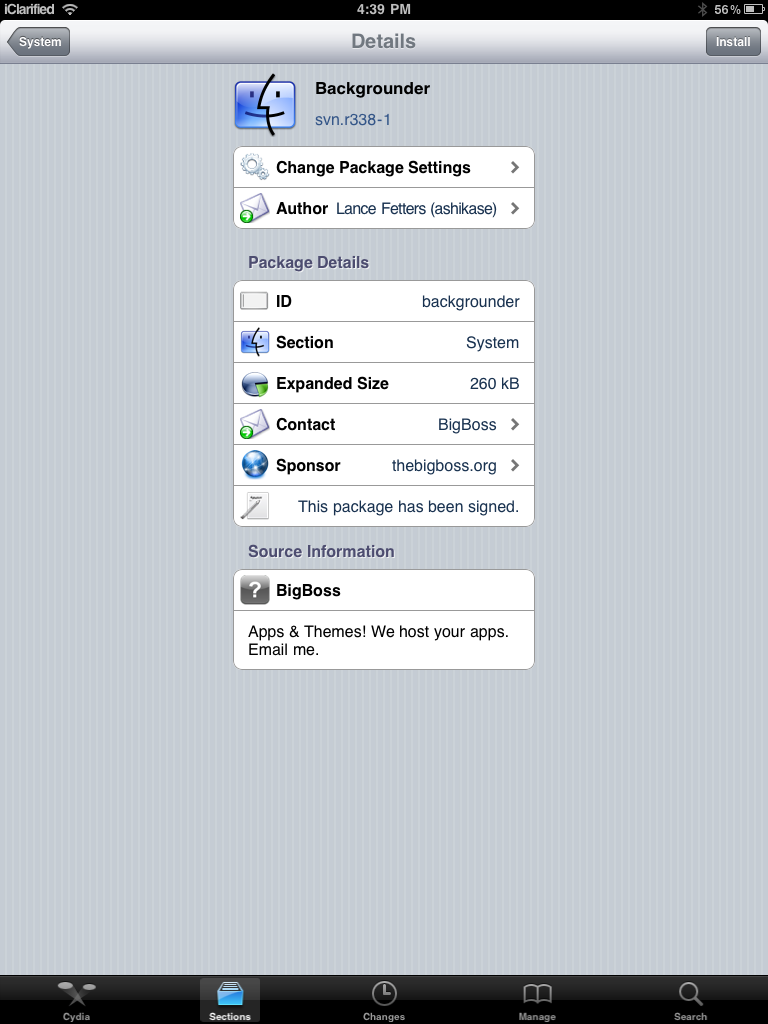
Step Seven
Press the Confirm button to begin installation.
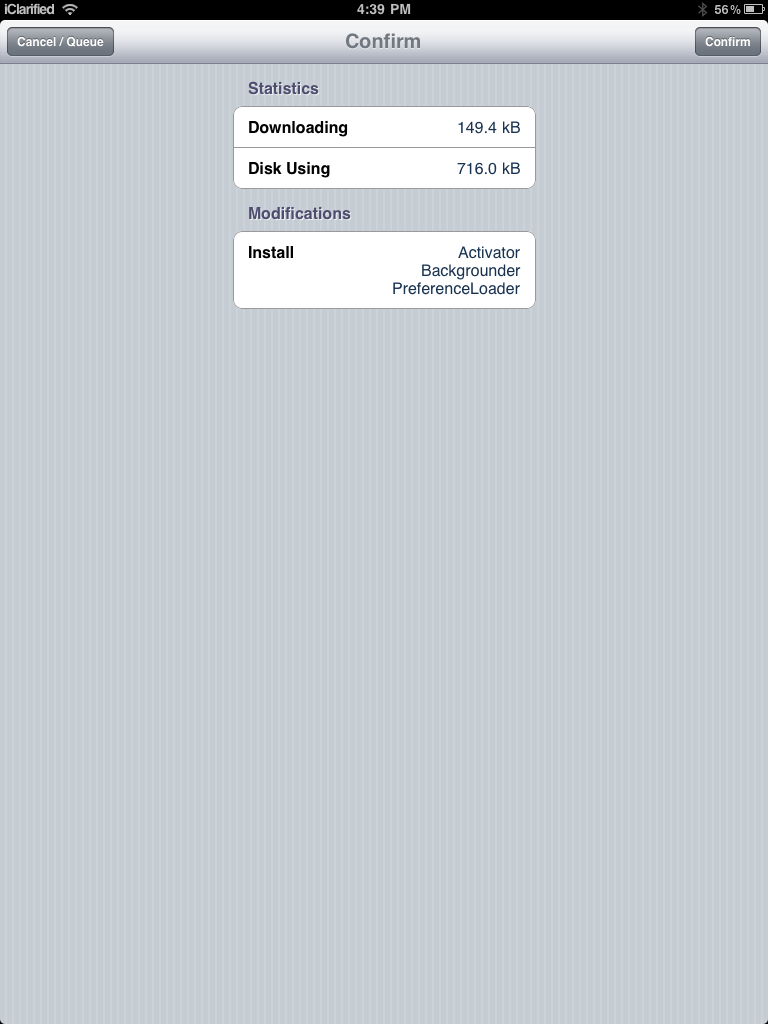
Step Eight
Once the installation has completed successfully you can press the large Restart Springboard button.
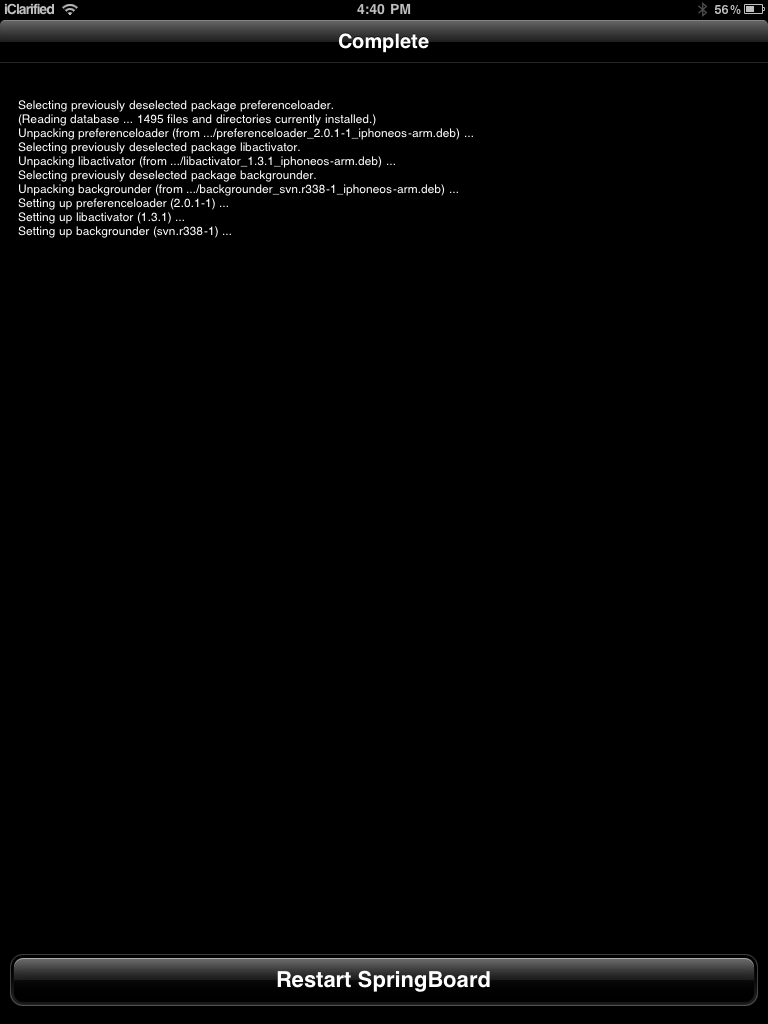
Step Nine
Now open the application you would like to run in the background. Press and hold the Home button until you see a "Backgrounding enabled" message.
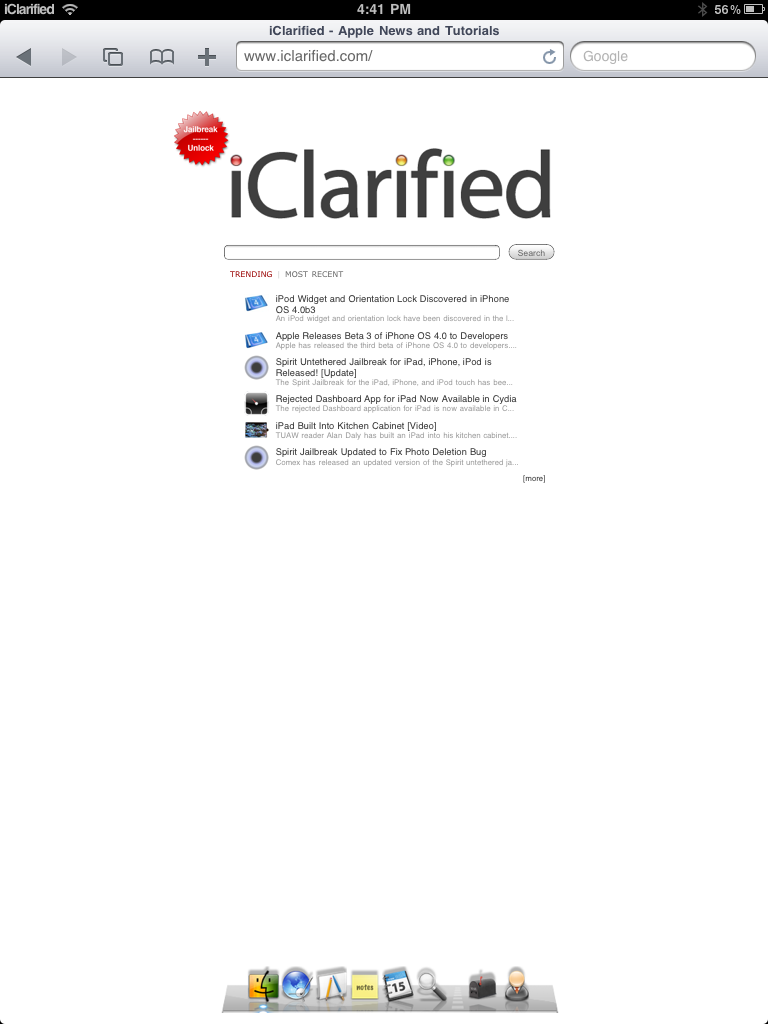
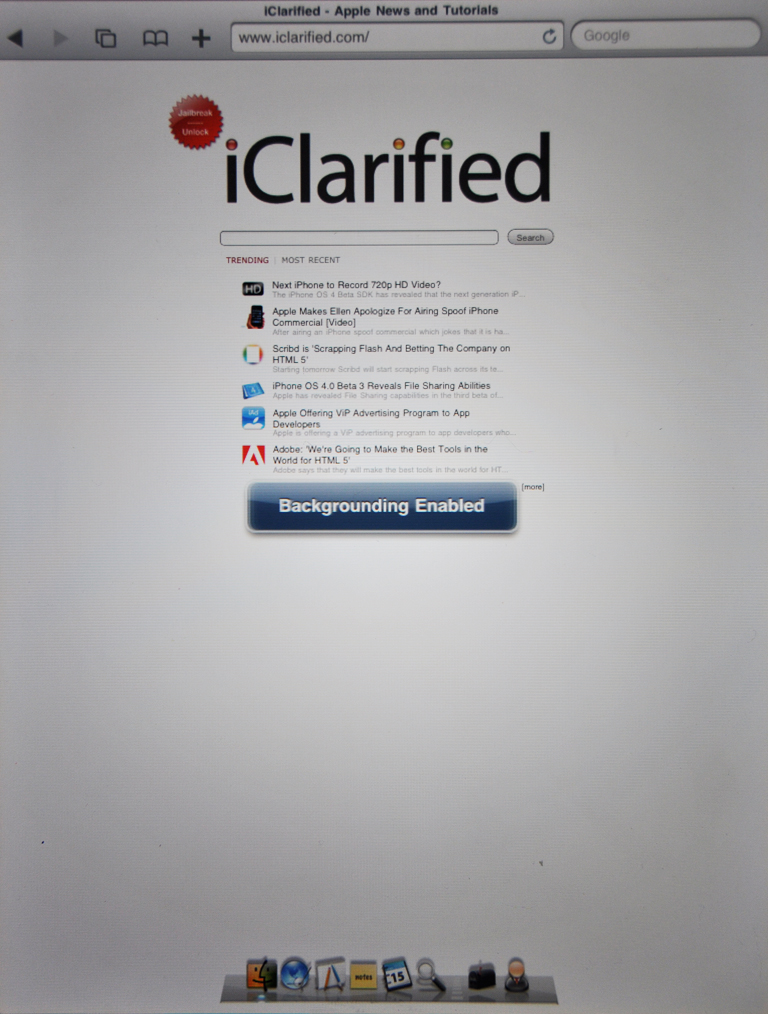
To stop an application from running in the background press and hold the Home button until you see a "Backgrounding disabled" message.
Download iPad Firmware Files
Below i have mentioned the links to download Firmware for iPad.
3.2.0: iPad1,1_3.2_7B367_Restore.ipsw
3.2.0: iPad1,1_3.2_7B367_Restore.ipsw
Monday, June 28, 2010
Hack for iPods - RockBox !

Rockbox is an open source firmware for mp3 players, written from scratch. It runs on a wide range of players:
Stable ports
- Apple: iPod 1g through 5.5g, iPod Mini and iPod Nano 1g
- Archos: Jukebox 5000, 6000, Studio, Recorder, FM Recorder, Recorder V2 and Ondio
- Cowon: iAudio X5, X5V, X5L, M5, M5L, M3 and M3L
- iriver: iHP100 series, H100 series, H300 series and H10 series
- Olympus: M:Robe 100
- Packard Bell: Vibe 500
- SanDisk: Sansa c200 series (not v2), e200 series (all models), and Fuze v1 (not v2)
- Toshiba: Gigabeat X and F series
Unstable ports
Rockbox runs on these players, but is incomplete, less usable or has problems that limit it to advanced users:
- Apple: iPod Nano 2g
- Cowon: D2
- Olympus: M:Robe 500
- Samsung: YH-820, YH-920 and YH-925
- SanDisk: Sansa Clip (all versions) and Sansa Fuze v2
- Toshiba: Gigabeat S
Unusable ports
Work has begun on porting Rockbox to these players, but much remains before they are usable:
- Cowon iAudio 7, Creative ZVM, Logik Dax, Meizu M6 and M3 Philips GoGear HDD1600, HDD1800, HDD6300 and SA9200, Onda VX747 and VX767, Tatung Elio TPJ1022, Sandisk Sansa m200, c100, c200v2 MPIO HD200
If your player is not listed above, then Rockbox does not run on it.
How to put iPod Nano into DFU mode
Entering DFU Mode
Entering DFU Mode on the nano is a little tricky. I had done so by doing the following:
- Connect the iPod to a PC running Linux.
- dd the firmware partition and the MBR to backup files (dd if=/dev/sdX1 (replace X with the letter assigned to the device) of=nano-of.bin; dd if=/dev/sdX1 of=mbr.bin count=1)
- dd some random data to the firmware partition to trash it (dd=/dev/urandom of=/dev/sdX1); let it run until it can't anymore.
- Disconnect, reset (MENU+SELECT), then reattach it to the PC.
- Reset it again while it's still connected, then immediately hit BACK+PLAY.
JailBreaking iPad from Spirit
Any version of iTunes 9 til 9.1.1 will work.
Step One
Download the Spirit Jailbreak from here and save it to your desktop.
Step Two
Double click the Spirit.app.zip file on your desktop to extract it.
Step Three
Double click the Spirit application to launch it
Step Four
Connect your iPad and press the Jailbreak button.
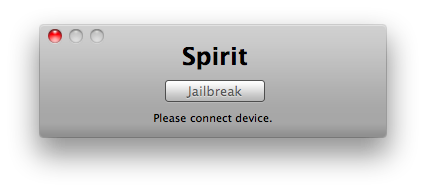
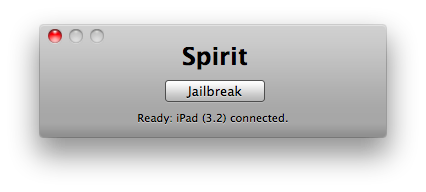
Step Five
The Spirit app will then let you know the jailbreak is complete.
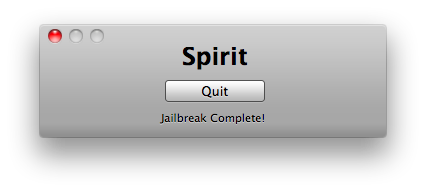
Your iPad will reboot and show you progress indicator. Once this finishes your iPad will be jailbroken with Cydia installed!
Step One
Download the Spirit Jailbreak from here and save it to your desktop.
Step Two
Double click the Spirit.app.zip file on your desktop to extract it.
Step Three
Double click the Spirit application to launch it
Step Four
Connect your iPad and press the Jailbreak button.
Step Five
The Spirit app will then let you know the jailbreak is complete.
Your iPad will reboot and show you progress indicator. Once this finishes your iPad will be jailbroken with Cydia installed!
Set Maximum Volume Limit on the iPod Shuffle
Step One
Set your iPod shuffle to the desired maximum volume.
Step Two
Connect the iPod shuffle to your computer.
Step Three
Select the iPod in the Source pane.
Step Four
Select the Settings tab in the main window.
Step Five
Under the options section, select "Limit maximum volume." Note: If you don't see this option, your iPod shuffle doesn't have the necessary software. You can download the latest iPod Updater for free at the iPod website.
Step Six
Drag the slider to the desired maximum volume. The initial slider setting corresponds to the volume the iPod shuffle was set to when you selected the "Limit maximum volume" checkbox.
Step Seven
To require a password to change this setting, click the lock and enter a password.
Step Eight
Click Apply to save the changes.
Once the limit is set on your iPod shuffle, the status light will flash orange quickly three times to indicate you have reached the set maximum volume limit.
Set your iPod shuffle to the desired maximum volume.
Step Two
Connect the iPod shuffle to your computer.
Step Three
Select the iPod in the Source pane.
Step Four
Select the Settings tab in the main window.
Step Five
Under the options section, select "Limit maximum volume." Note: If you don't see this option, your iPod shuffle doesn't have the necessary software. You can download the latest iPod Updater for free at the iPod website.
Step Six
Drag the slider to the desired maximum volume. The initial slider setting corresponds to the volume the iPod shuffle was set to when you selected the "Limit maximum volume" checkbox.
Step Seven
To require a password to change this setting, click the lock and enter a password.
Step Eight
Click Apply to save the changes.
Once the limit is set on your iPod shuffle, the status light will flash orange quickly three times to indicate you have reached the set maximum volume limit.
Subscribe to:
Posts (Atom)


